

Why does this page exist
Confluence at times works in ways that are hard to understand. Confluence has limitations.
We built this app using the available APIs. Some things that clients want, and we would like to do, are not technically possible.
For system administrators we want to be a resource and to build trust so we can be counted on as Confluence experts.
Go directly to a specific feature
Not supported
Databases, Whiteboards, Slides
It is not technically possible for the app to search or make changes to databases, whiteboards or slides.
While Atlassian is committed to extending the API to allow Atlassian Marketplace vendors to work with databases and whiteboards no timeline has been given.
Third-party macros
We do not support finding text inside macros from apps downloaded from the Atlassian Marketplace. These macros are also referred to as third-party macros. Therefore, text in third-party macros do not appear in the preview.
The technical reason is that third-party macro data is not stored in a standardized way. Each third-party macro can store its content in a proprietary or non-standard format. As a result the app can’t reliably access or interpret the text inside those macros.
Supported
All languages
-
Latin alphabets (e.g. English, German, Turkish)
-
non-Latin alphabets (e.g.: Cyrillic, Arabic, Greek, Hebrew, and Devanagari)
-
Japanese
-
Chinese
-
Korean
Special characters, accents and tones
-
special characters (examples: &, %, $, #, @)
-
accents and tones (examples: é, ö, ł, į, č, έ, ώ)
Native Atlassian macros
This matters most for find and replace. You can find, preview and replace text inside native Atlassian macros.
Legacy macros may not be supported. They are being fazed out.
Enormous instances
No Confluence instance or space is too large. Space Content Manager is optimized to work well no matter the number of pages in a space or the entire Confluence instance. If you search or make changes to a large number of pages at once please be patient.
Permissions respected
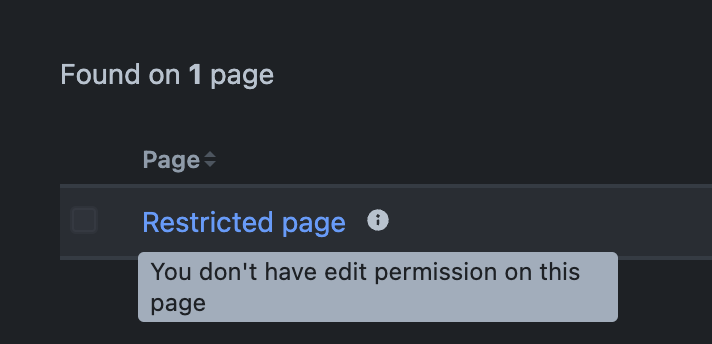
The Confluence page restrictions and permissions are always respected. A user can only preview a page if they have at least view access and can only edit a page if they have edit access. When a user has view access, but not edit access, they will see the page in the preview but they are not able to select the page.
More details
Most of the tools in Space Content Manager include a tooltip next to the page hyperlink to inform the user when they do not have edit permission.
Find and replace
Preview is slower when searching a lot of pages
It can take time to generate a preview when searching a large number of pages. This is most common when searching the entirety of a large space or many spaces at once. A running progress bar by percentage of progress is shown.
Page change limits
Only 150 pages can be changed at once. The search is stopped at 150 and the preview is displayed. This number has been chosen to make it possible to change as many pages as possible at once on the one hand. Yet avoid long waiting times for preview, risk of changing too many pages by mistake and allowing the app to run without any mistakes.
If you want to change more than 150 pages you need to run the updates in batches of 150 one after the other.
Status manager
Status manager only works per space
It is not possible to bulk change a status across multiple spaces as the same time. Bulk editing of a status can only be done per Confluence space.
Statuses are space‑specific
Atlassian allows each Confluence space to have its own custom statuses. While a space initially comes with a standard set of statuses, a space administrator will often customize the statues when the use of statues are a key part of the workflow.
What is key to note is that statues are not necessarily common across a Confluence instance.
Label manager
Child pages search only shows parent pages with children
When using ‘Child pages’ to search only parent pages with children show up as page select options.
Label colors in preview
The color of each label in the preview tells a user what, if any, change occurs if click 'Submit'.
Grey = no change
Green = will be added
Red = will be deleted
Yellow = will be changed if merge or rename
When a new label is created
A new label is not created until it has been added to at least one page. This only happen after Submit is clicked. If a user adds a label in preview, then leaves the app without clicking Submit the new label is not created.
Label related pages by title keyword
Users can enter any text string (a common naming pattern or keyword) in the "Search by page titles" field. After clicking preview the app finds and displays all pages with that string in the title.
This solves the problem of having to manually search for and update each page individually when you want to make changes across a set of related pages.
Link manager
URL formatting
Each URL must start with 'http://' or 'https://'.
Email formatting
Confluence supports advanced mailto: link formatting to prepopulate an email when the link is clicked. The email is normally created in the desktop client as it is the default on most computers.
-
must start with 'mailto:' followed by the email
-
e.g. mailto:info@easyapps.app
-
Multiple emails
When a user clicks on the link it prepopulates the To field with multiple emails.
-
mailto:email@example.com, secondemail@example.com, anotheremail@example.com
CC and/or BCC
To add CC and BCC to your email, use the cc or bcc parameter.
-
mailto:email@example.com?cc=secondemail@example.com, anotheremail@example.com, &bcc=lastemail@example.com
Subject line
Include a prepopulated subject line.
-
mailto:email@example.com?subject=Subject line text
Body text
Include a prepopulated body text.
-
mailto:email@example.com?body=Body text
Combine parameters
-
mailto:email@example.com?cc=secondemail@example.com, anotheremail@example.com, &bcc=lastemail@example.com&subject=Mail from our Website&body=Some body text here
Phone number formatting
tel: format is not fully supported. The '+' for international calling does not work. Hover over and click on ‘tel:+’ and you will see that it is invalid.
A number only works for callers from within the same country and if the number is written in the URL exactly as if dialing within the country. Links starting with ‘tel:’ can only have numbers. Example in North America ‘tel:2025557777'.
The only way to use 'tel:+' is to get an HTML macro app from the Atlassian Marketplace so that you can use HTML on the page. Here is an example as to what you could add inside such a macro to make the phone number usable for users in any country:
<a href="tel:+441234567890“>Call us</a>
Atlassian does not have short term plans to fully support the tel: standard (see closed feature request).
Attachment manager
Attachment manager has recently been added to Space Content Manager. We are still preparing this part of the documentation. It works exactly the same as our other app Attachment Manager for Confluence which has full documentation.