

How to open Space Content Manager
Global page (across multiple spaces) [Recommended]
While anywhere in Confluence go to the right menu:
Apps --> Space Content Manager

To edit pages in current space only
While on a page go to right menu at the bottom:
Space apps --> Space Content Manager

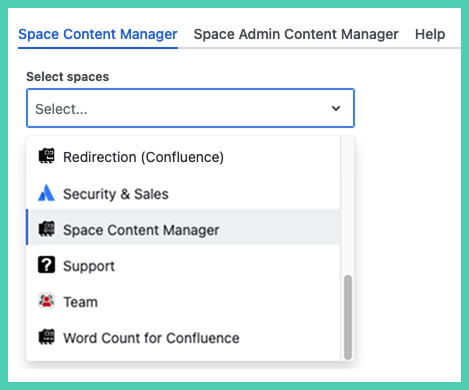
How to select spaces
Choose all the spaces you want to include in bulk editing.
How to see page statistics
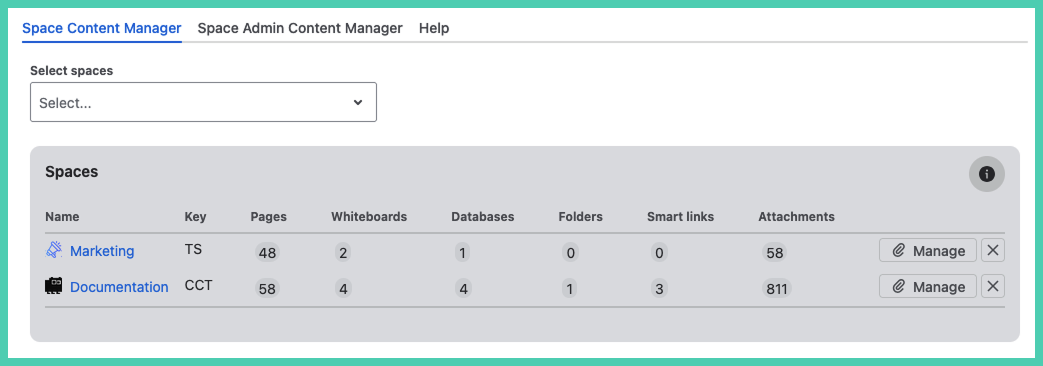
After select a space you get a statistics. It displays the number of pages, whiteboards, databases, folders, Smart Links, and attachments per space.
-
click ‘Manage’ to go to the attachment manger for that space (it is per space)
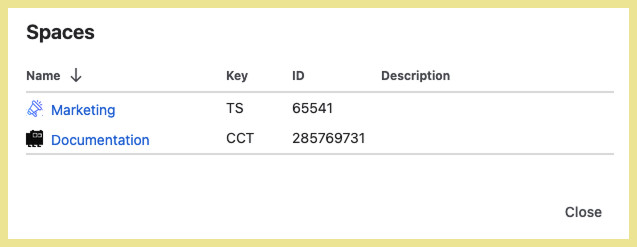
Space ID and space description
Click on the icon (last column at the top) to see space key, space ID and space description.
How to access features
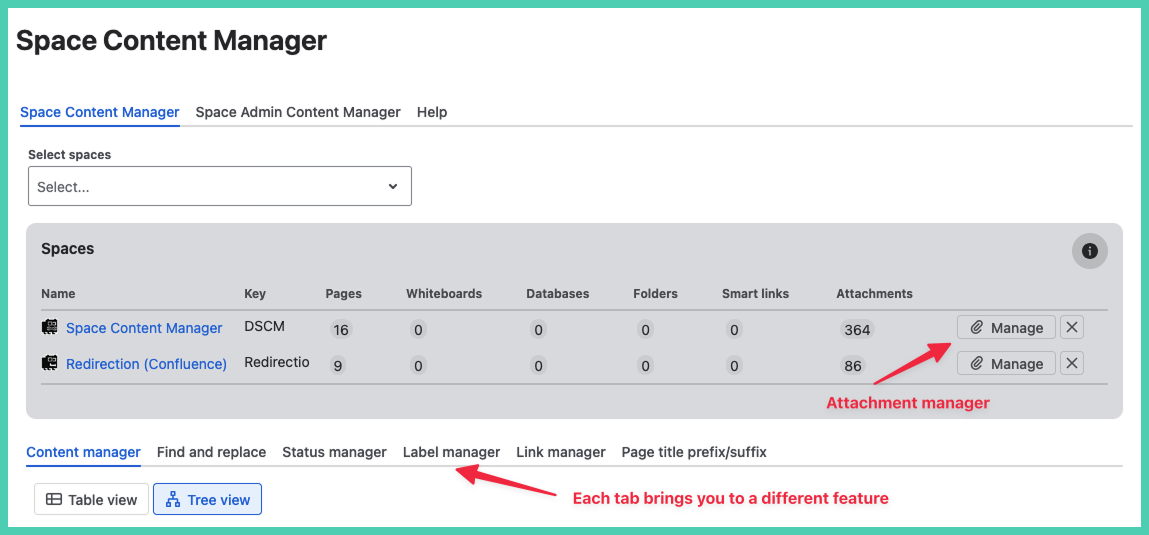
Features are divided by tab, the exception is attachment manager.
How to access administrator features
The second tab on the global page is only seen by administrators.
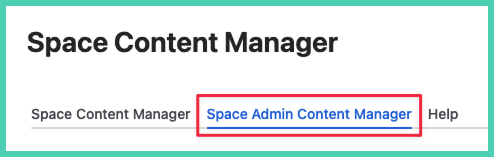
Administrators can also:
-
find and replace URLs
-
merge labels
-
rename labels
On the space level version administrators need to click on ‘More actions’ at the bottom next to ‘App settings’.

How to access page level features
On any page select ‘More actions’ […] to open the pull down menu. Scroll down, select ‘Apps’ then 'Space Content Manager’.
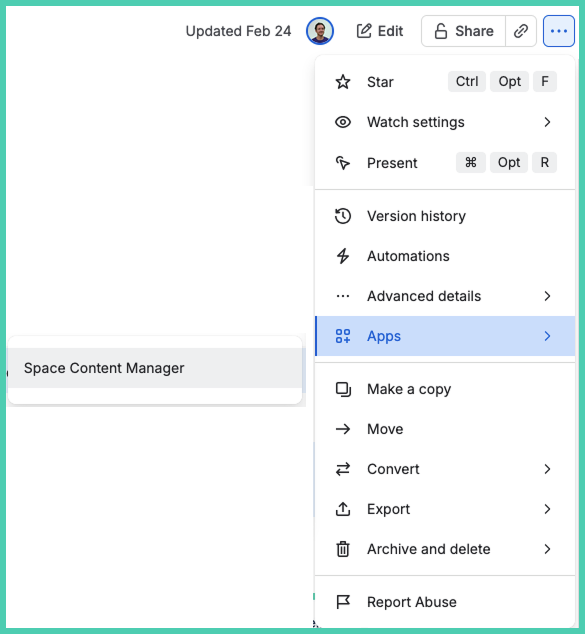
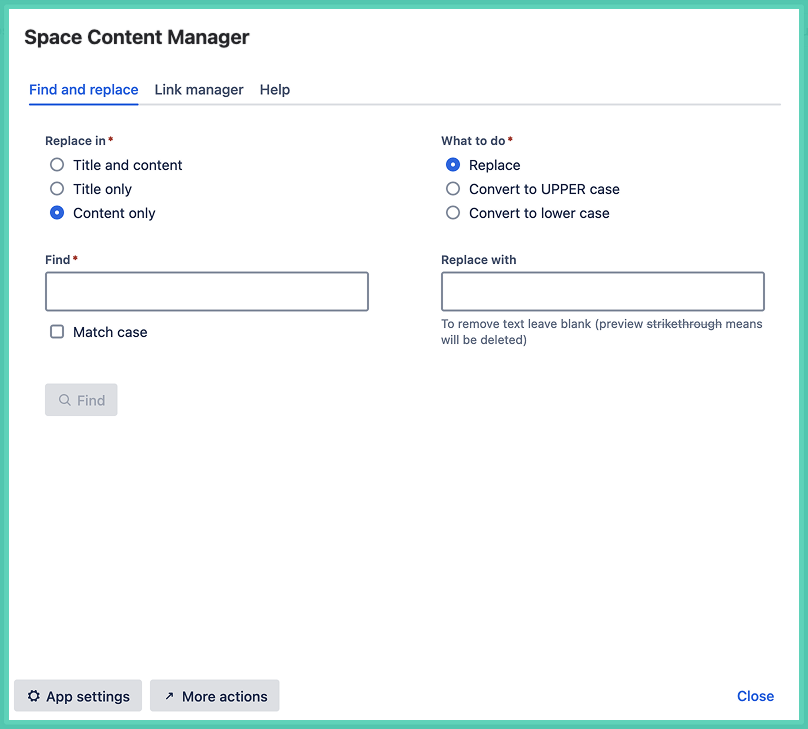
At the page level there are two features:
-
find and replace
-
link manager
How to restrict access to features
Go to page Restrict access per feature.
Restricting features by space, group or user is a hidden power of Space Content Manager.
It puts organizations in full control to ensure compliance, security and the flexibility to work in the way you prefer.
How to install Space Content Manager
Only a system administrator can install apps (sometimes called an add-on or plugin). Users can request apps to be installed.
Go to the Atlassian Marketplace listing for Space Content Manager or explore the Atlassian Marketplace from within Confluence.