

What you can do on while working on page
Use Space Content Manager on the page you are working on an do single page bulk editing.
Find and replace
-
find text
-
replace text
-
delete text
-
convert to UPPER or lower case
-
replace URLs (space administrators)
Link manager
-
edit URLs and link display text
-
bulk change display inline to display URL
-
bulk change display URL to display inline
How to find and replace on a page
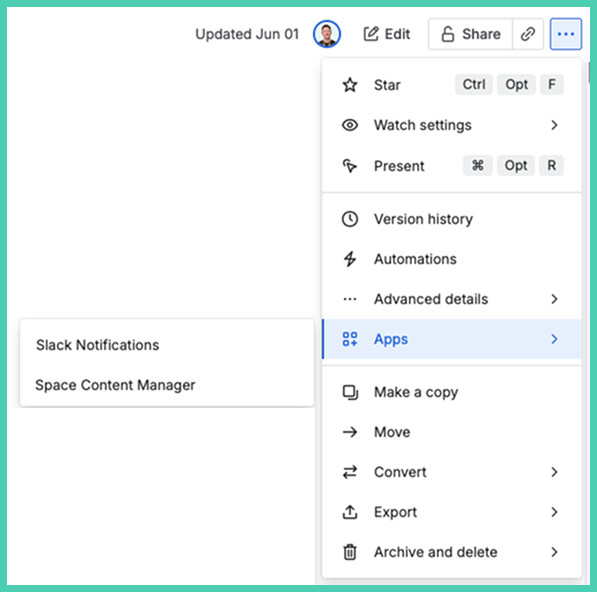
Open the app on any page under More actions.
It is the default tab.
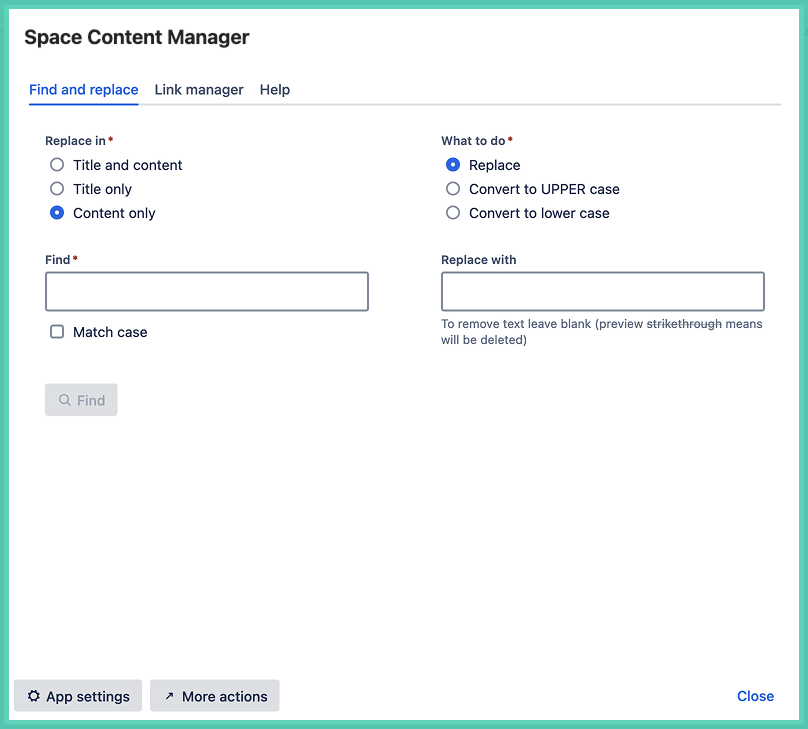
-
only administrators can see the ‘App settings’ and ‘More actions’ buttons
Find
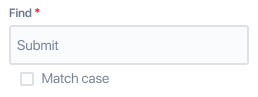
Use as many terms as you wish.
Supports:
-
most special characters like &, %, $, #
-
languages not using the Latin alphabet
-
Japanese, Chinese, Arabic, Greek, Hindi and more
-
Tip: use match case if possible to restrict the results.
Replace
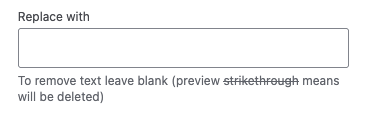
Replace text is case sensitive.
Delete
To delete terms, enter them in the Find field. Then leave the Replace field blank. Terms to be deleted displays in the preview with a strikethrough.
Replace or change case
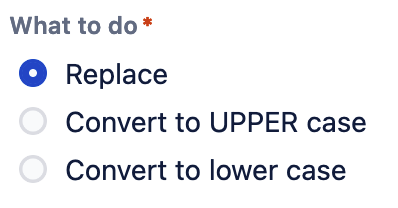
Most of the time the default Replace is desired. But there are also options to convert to upper case or lower case.
Preview
Click the Find button to preview the changes.

The Find button will change to a spinning icon as the app searches the pages. If your space has a large number of pages please be patient.
The proposed changes are highlighted in yellow. Deselect want you do not want to change.
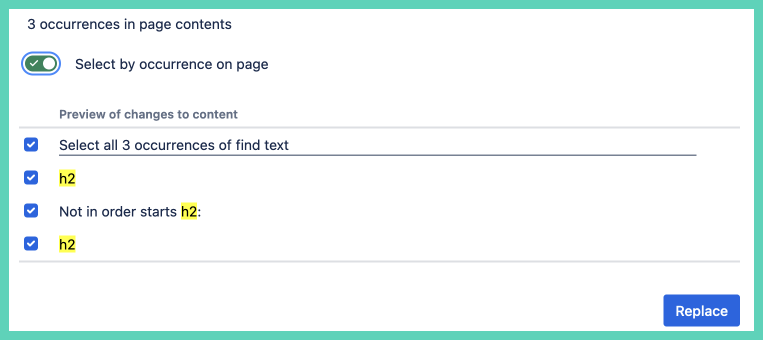
If the Replace field is left blank the terms are deleted. They are displayed with a strikethrough.
Confirm
When happy with the preview click Replace.

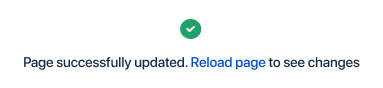
Click on the blue hyperlinked text to reload the page or click reload in your browser.
How to use link manager on a page
On any page select ‘More actions’ […] to open the pull down menu. Scroll down, select ‘Apps’ then 'Space Content manager’.
Select the tab ‘Link manager’.
Preview
You see a list of all the links on the page. The preview is a required step before you can submit changes.
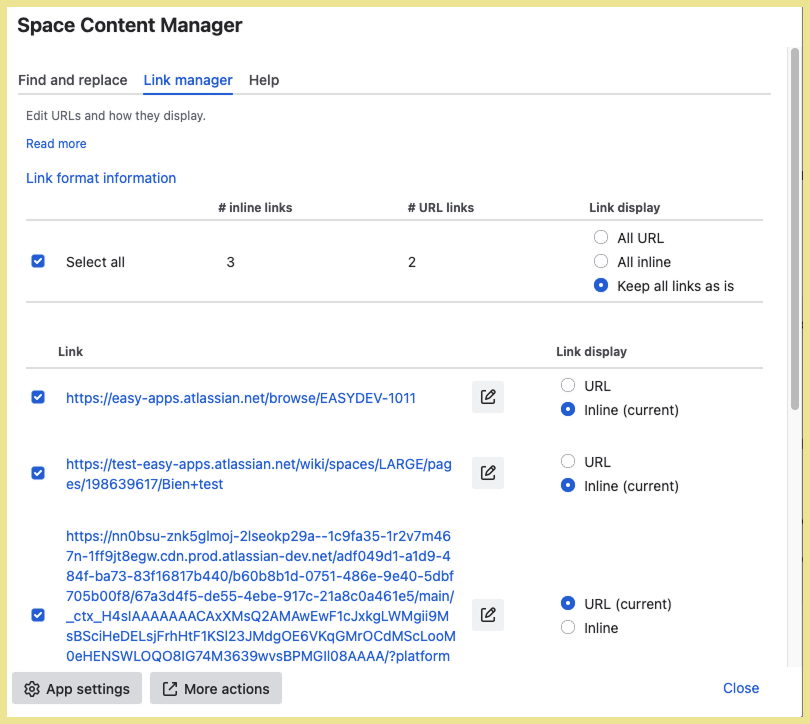
Note: only administrators can see the ‘App settings’ and ‘More actions’ buttons.
Select - unselect
All links are selected by default.
-
deselect links you do not want to change
Even if a link is selected nothing will change unless you actively make a change (link text or change how it displays). Meaning you are not required to deselect links that are not changing.
Edit base URL and display text
Changing the underlying URL and text of a link are done separately.

Select edit icon to make a change.
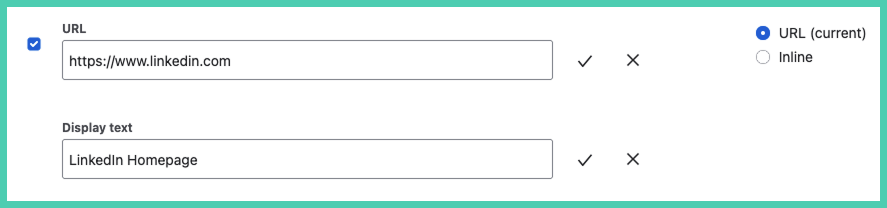
Change from Display URL to Display inline (or the reverse)
In this example URL is the what the link currently is.

It is being changed to ‘Display inline'. The preview disappear because Line does the base URL.

Display URL (URL) means it shows the full URL. You can customize the text that is displayed.
Example: if the underlying Display URL is by default displayed as https://www.atlassian.com/ you could edit it to Atlassian homepage.
Display inline (Inline) means it shows the meta title of the link. This is done automatically when you paste a link into Confluence. Example:
Atlassian links use a system they call smartlinks. Learn more.
Confirm changes
After all edits have been made click the ‘Submit’ button in the bottom right.

Confirmation
The icon shows next to URLs that have been updated. Those with no status icon have not changed.
