

What you can do with Content Manager
Find and manage content that needs attention
-
search by page title or characters in title
and/or
-
filter by space, status, label, owner, date updated, date created, page type, if has attachments, number of views, and number of comments
Features
-
edit page title
-
insert title prefix and/or suffix
-
change page owner and/or status
-
add and/or remove labels
-
see metadata
Use case example
-
identify pages with inactive or unknown owners, reassign them in bulk
From our blog: Compare 6 Confluence Bulk Content Management apps (121 features)
You first need to select at least one space before accessing a feature. See how on Getting started page.
Why we have both table view and tree view editors
-
tree view shows where pages belong
-
table view shows how pages compare
-
a single view can't do both
When you sort or filter pages it takes them out of their place in the hierarchy.
Should I use table view editor or tree view editor
On a practical level table view has more filtering options. When you are not sure what pages need editing, if any, use the filters to drill down and help with content health review.
-
what you can edit is the same in both views
-
preference, an option to choose the style of editing you prefer
Table view editor
Table view is the default after selecting spaces as it gives you more filtering options which open up additional use cases.
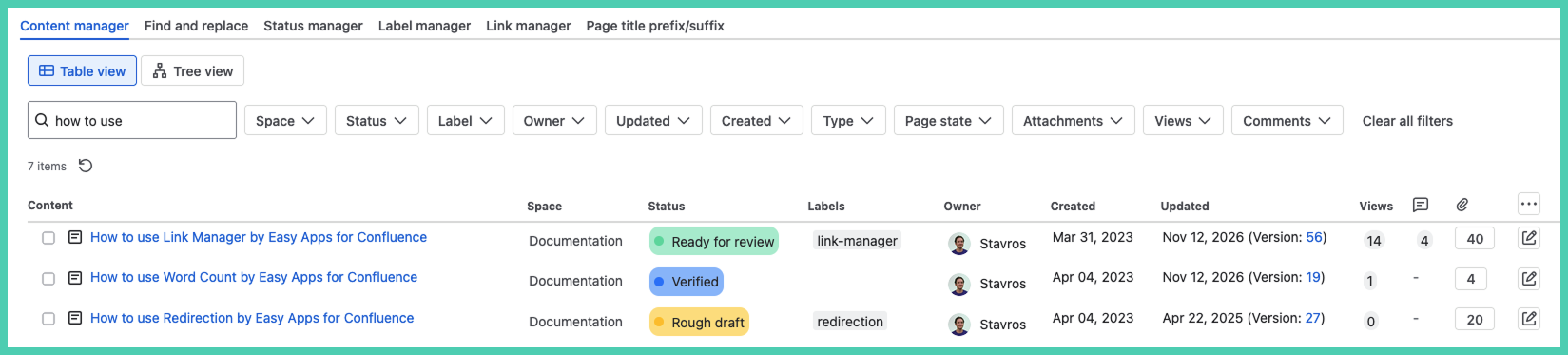
Filter pages by title
Search by page title (or characters in title)
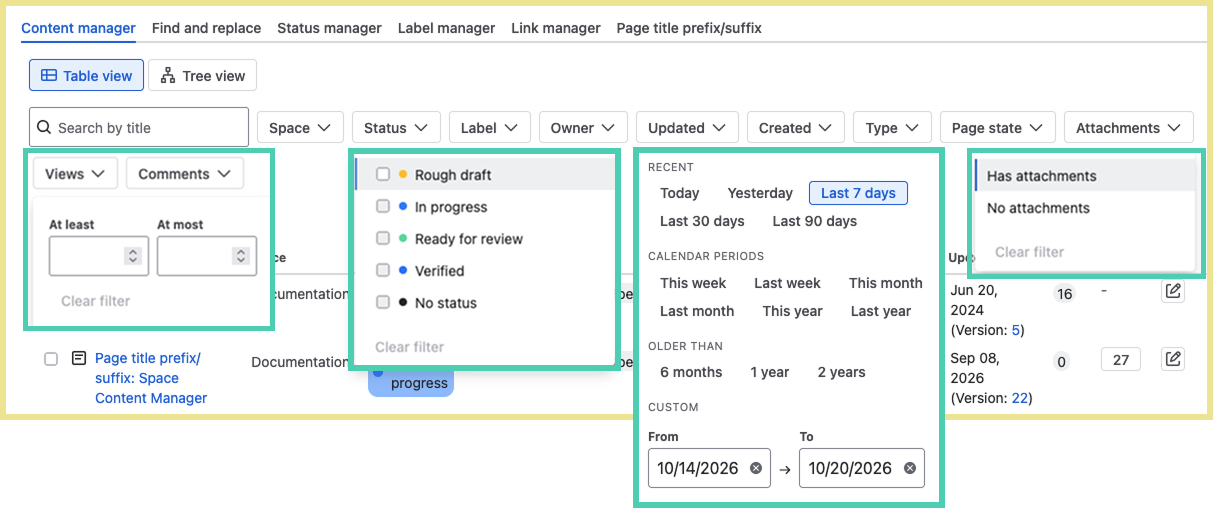
Add up to 10 custom filters
Combine filters to drill down content to what matters.
-
space, status, label, owner, date updated, date created, page type, if has attachments, number of views, and number of comments
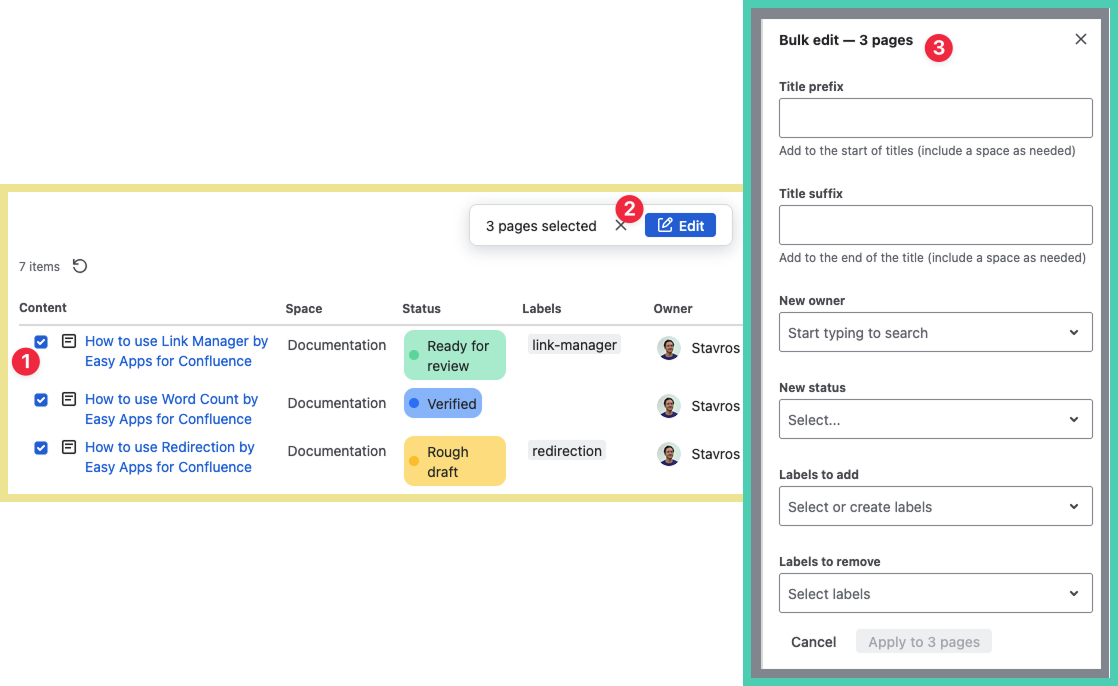
Bulk editing
-
select the pages you want to edit
-
a button ‘Edit’ appears, click it
-
a popup with editing options appears
You can
-
insert title prefix and/or suffix
-
change page owner and/or status
-
add and/ore remove labels
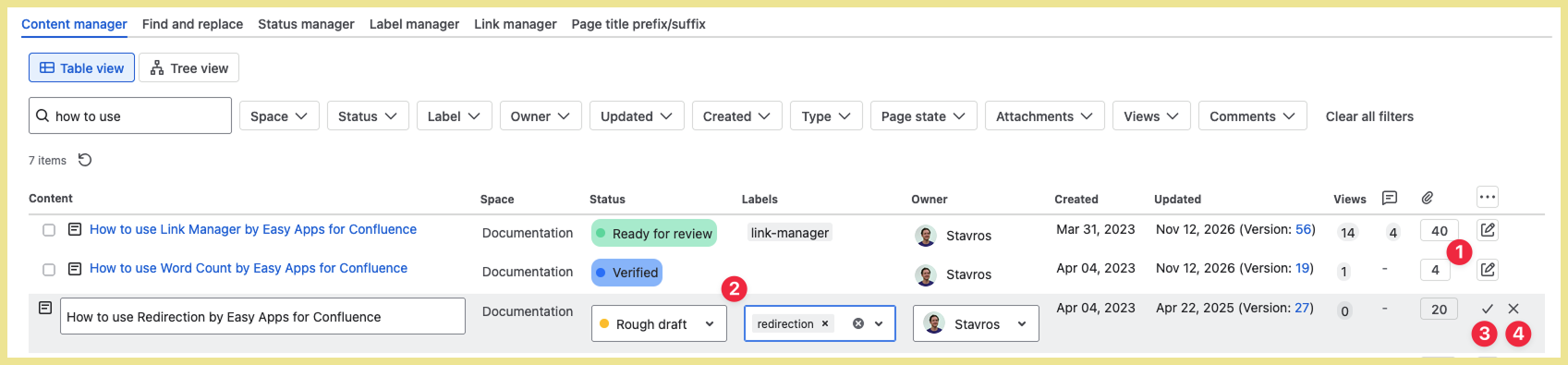
Single page editing
-
select the edit icon (last column) for the page you want to edit
-
edit title, status, labels and/or owner
-
click the check ✔️ icon to save
-
to cancel, deleting any edits, click on the ✖️ icon
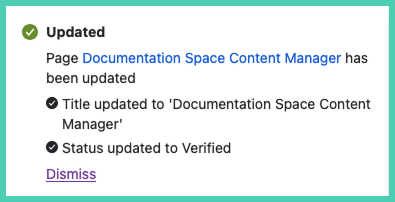
Confirmation of edits
After submitting a change you get a detailed explanation of exactly what changed.
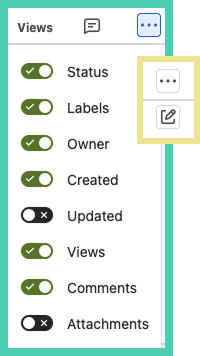
Limit columns to display
Click … (3 dots) in the header row of the last column (above the page editing icon) to customize the columns you want to display.
-
select/deselect columns
-
page column cannot be excluded
-
changes are instant and are saved so that the updated column choices show each time you return to Space Content Manager
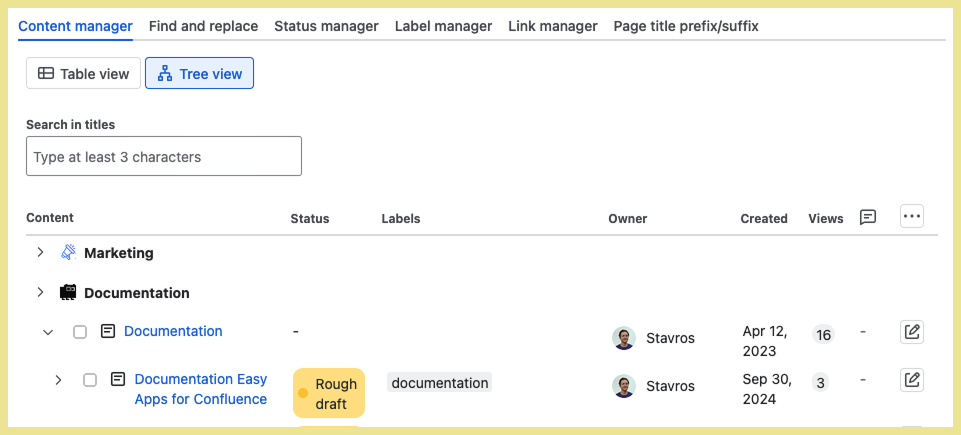
Tree view editor
To edit pages using the tree view editor select Tree view.
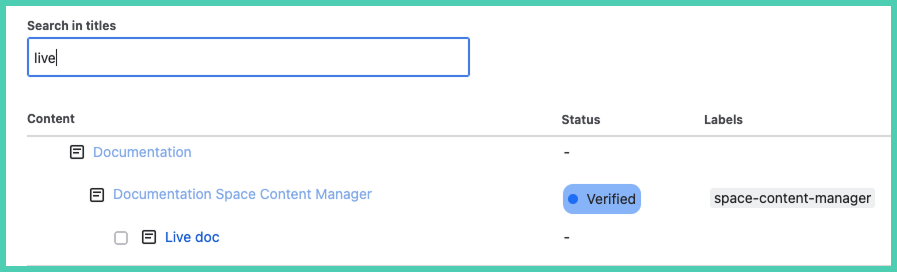
Filter pages by title
The characters can be anywhere within the title, not only at the start.
Bulk editing
-
select the pages you want to edit
-
a button ‘Edit’ appears, click it
-
a popup with editing options appears
You can
-
insert title prefix and/or suffix
-
change page owner and/or status
-
add and/ore remove labels
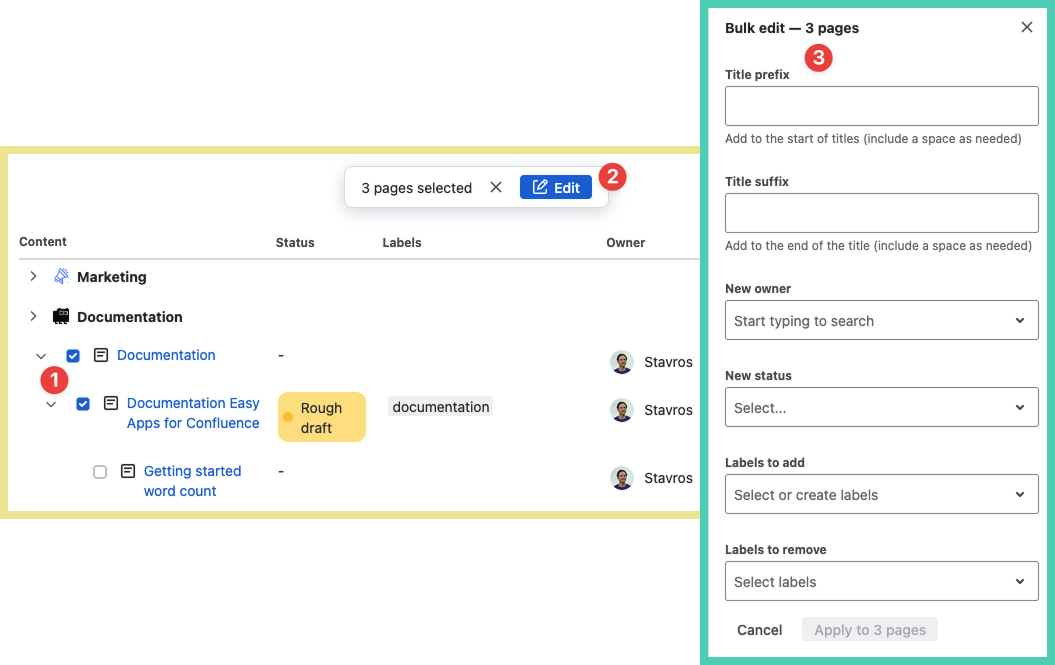
Child pages are not automatically selected when you select a parent page.
Single page editing
-
select the edit icon (last column) for the page you want to edit
-
edit title, status, labels and/or owner
-
click the check ✔️ icon to save
-
to cancel, deleting any edits, click on the ✖️ icon

Confirmation of edits
After submitting a change you get a detailed explanation of exactly what changed.