

What you can do with link manager
Across multiple spaces or on a single page.
-
bulk change Display URL to Display inline
-
bulk change Display inline to Display URL
-
bulk find and replace in URLs
How to use link manager across spaces
Select spaces
When using the app as a global page you can select multiple spaces.
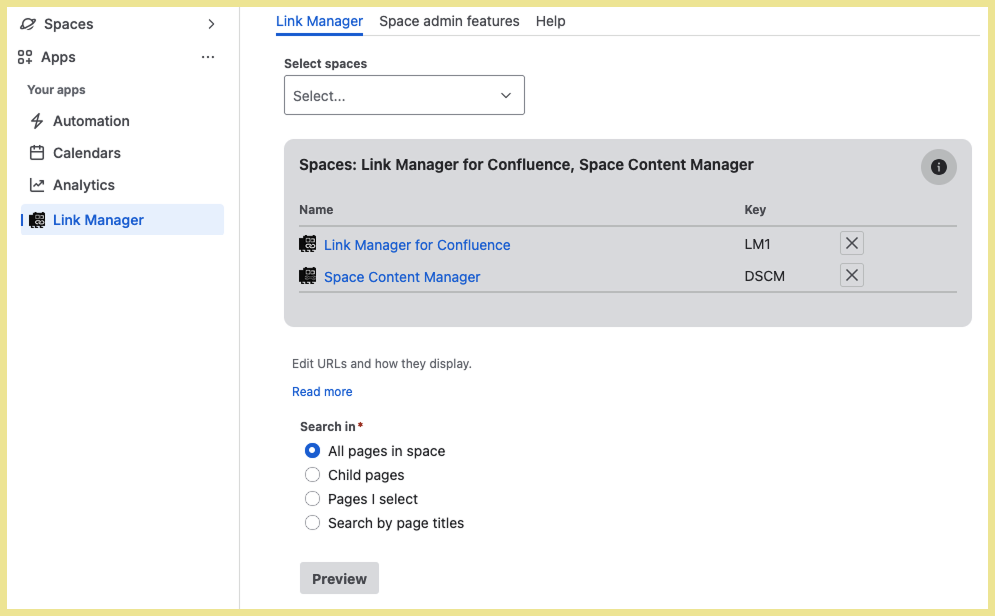
If you are using link manager under ‘Space apps’ you will not see ‘Select spaces’ as it restricts you to the space you are currently working in.
Select pages
-
user must have at least view permission to see a page as a search option
-
pages only appear under ‘child pages’ search if the parent page has children
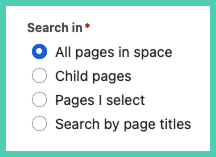
All pages in space
The default page selection is all pages in all the spaces you have selected.
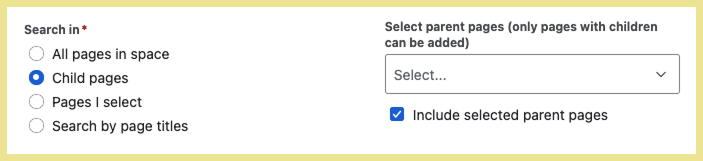
Child pages
When you select a parent page under ‘Child pages’ by default it only includes the child pages. In order to include the parent pages you must check the box ‘Include selected parent pages’.
Pages I select
Choose pages one by one, as many as you want.

Search by page titles
Enter a term to get a result of all the page titles that contain the term.
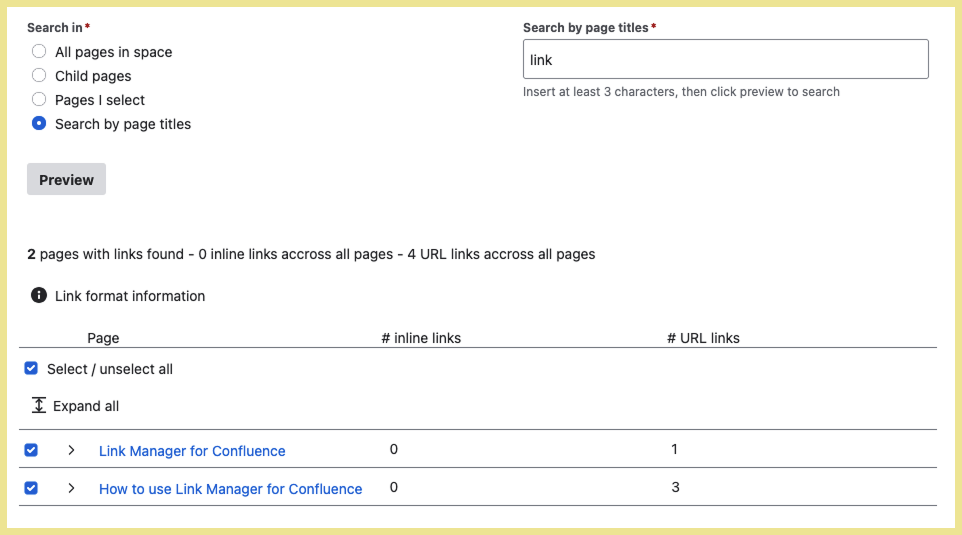
Preview
The preview is a required step before you can submit changes.
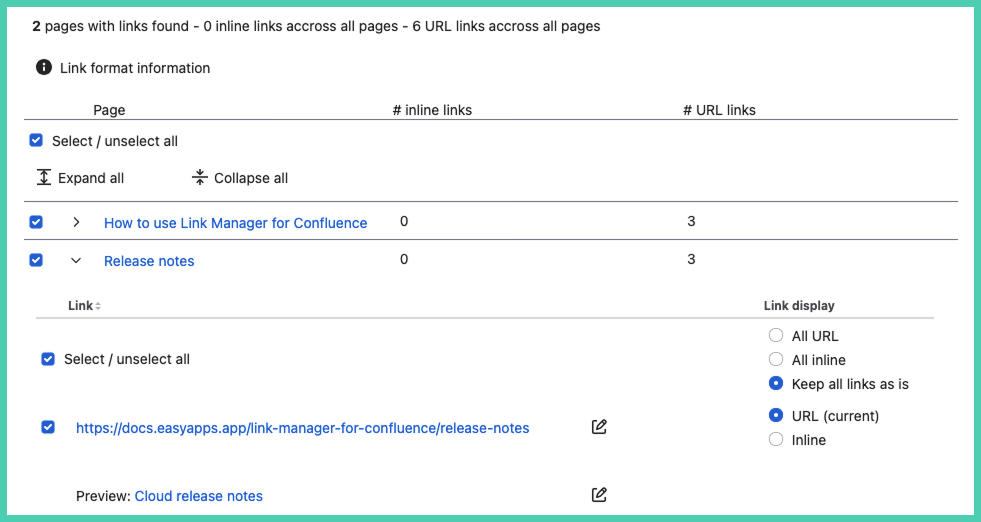
In preview: select all or unselect all pages
-
if you ‘Unselect all’ and then ‘Select all’ it will include all the links, including any links you previously unselected individually
In preview: expand or collapse
Across all pages
-
‘Collapse all’ is the default state, use it to only see the page titles
-
use 'Expand all' to see all links on all pages
Per page
-
click ‘Select / unselect all’ to include or exclude all the links on a page from changes
Individual link
-
deselect links you do not want to change
Even if a link is selected nothing will change unless you actively make a change (link text or change how it displays). Meaning you are not required to deselect links that are not changing.
In preview: edit base URL and display text
Changing the underlying URL and text of a link are done separately.

Select edit icon to make a change.
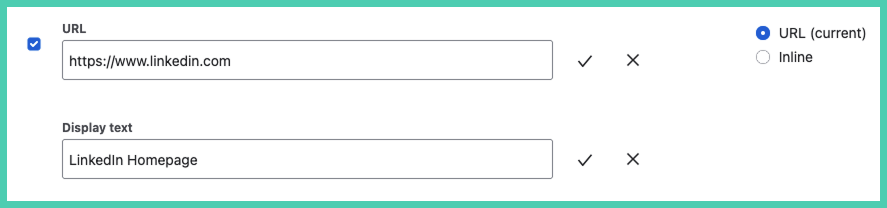
In preview: change from Display URL to Display inline (or the reverse)
In this example URL is the what the link currently is.

It is being changed to ‘Display inline'. The preview disappear because Line does the base URL.

‘Display URL’ (URL) means it shows the full URL. You can customize the text that is displayed.
Example: if the underlying Display URL is by default displayed as https://www.atlassian.com/ you could edit it to Atlassian homepage.
‘Display inline’ (Inline) means it shows the meta title of the link. This is done automatically when you paste a link into Confluence. Example:
Atlassian links use a system they call smartlinks. Learn more.
Confirm changes
After all edits have been made click the ‘Submit’ button in the bottom right.

See confirmation
The icon shows next to URLs that have been updated. Those with no status icon have not changed.

Bulk replace URLs (space admins only)
Space administrators can also bulk change the underlying URLs.
It is part of Find and replace (URLs)
When using Space Content Manager under ‘Apps’ select the tab 'Space admin features' select the spaces where you want to find the links.
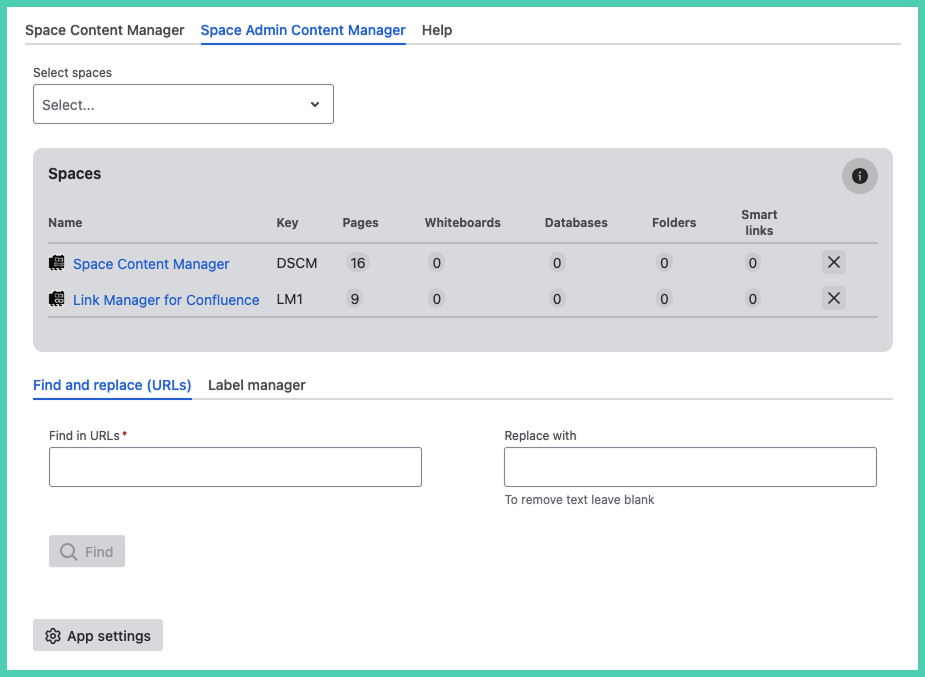
Space Apps access
If you are using the app under ‘Space apps’ you need to click the ‘More actions’ button at the bottom. It will take you to space settings. Only administrators see this button as it is an admin only feature.

Bulk change URLs
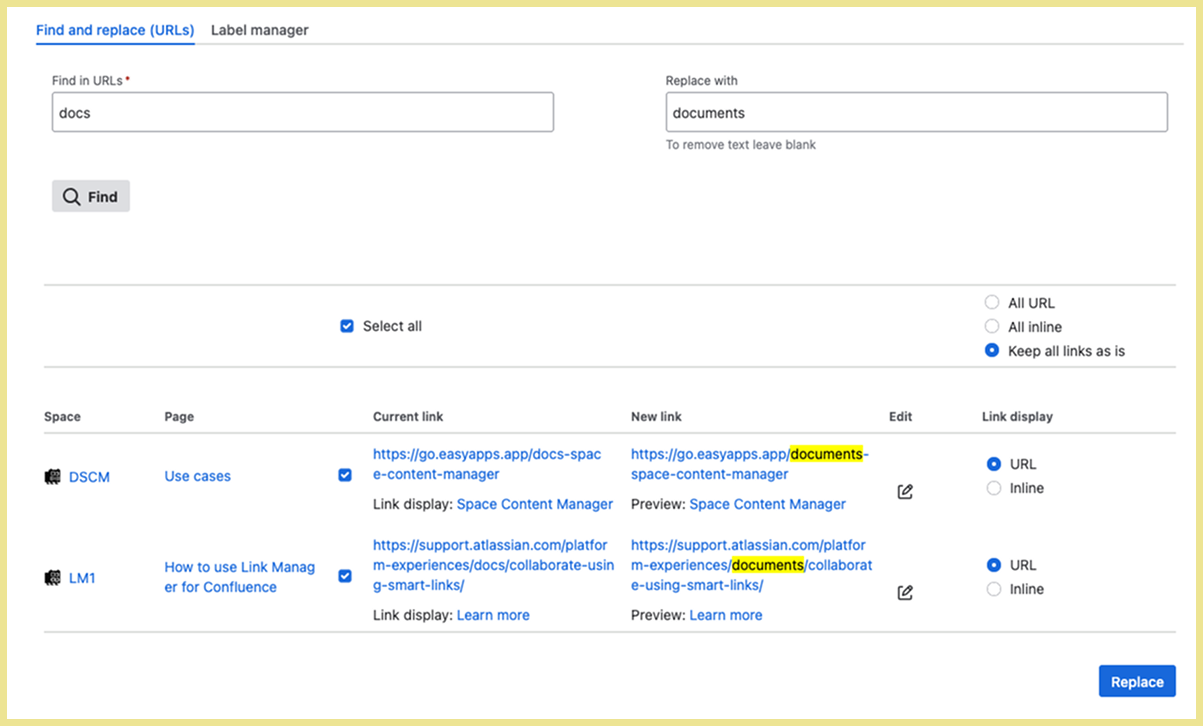
Enter both the terms to ‘Find in URLs’ and to ‘Replace with’. If replace is left blank the find term will be removed from the URL.
Click 'Find' to preview changes.
You have the option to edit the display text per URL.
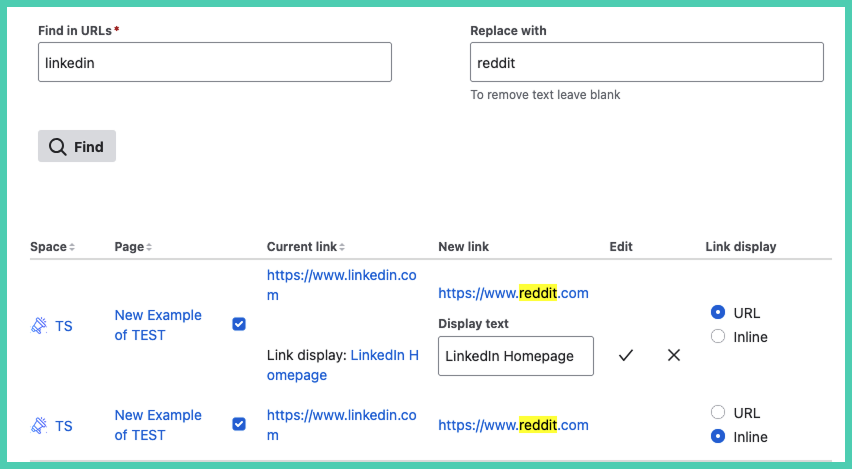
When you are happy with what you see in the preview click ‘Replace’.

The icon under status means it has successfully updated.

Why does it still say ‘LinkedIn’ and not reddit? The underlying URL was changed. The display text is edited separately per link.
How to use link manager while working on a page
On any page select ‘More actions’ […] to open the pull down menu. Scroll down, select ‘Apps’ then 'Space Content manager’.
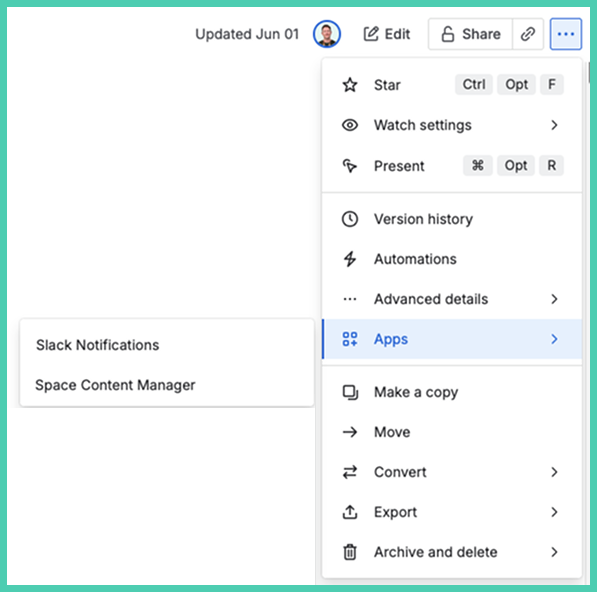
Editing links on the page level is almost identical to doing so at the space level. See above for editing details.
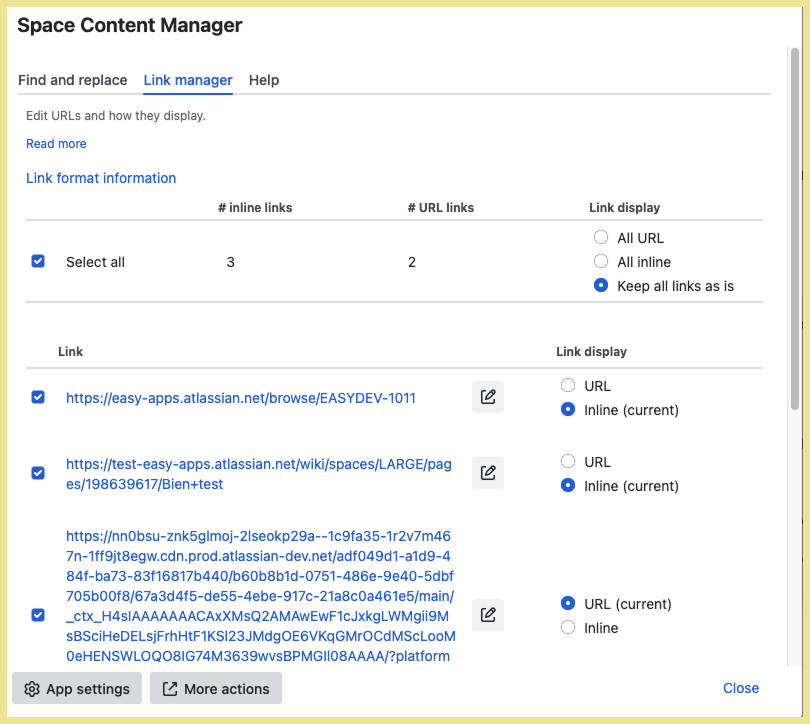
Note: only administrators can see the ‘App settings’ and ‘More actions’ buttons.
Technical notes
Formatting URLs
-
each URL must start with 'http://' or 'https://'.
Formatting emails
Confluence supports advanced mailto: link formatting to prepopulate an email when the link is clicked. The email is normally created in the desktop client as it is the default on most computers.
-
must start with 'mailto:' followed by the email
-
e.g. mailto:info@easyapps.app
-
Multiple emails
When a user clicks on the link it prepopulates the To field with multiple emails.
-
mailto:email@example.com, secondemail@example.com, anotheremail@example.com
CC and/or BCC
To add CC and BCC to your email, use the cc or bcc parameter.
-
mailto:email@example.com?cc=secondemail@example.com, anotheremail@example.com, &bcc=lastemail@example.com
Subject line
Include a prepopulated subject line.
-
mailto:email@example.com?subject=Subject line text
Body text
Include a prepopulated body text.
-
mailto:email@example.com?body=Body text
Combine parameters
-
mailto:email@example.com?cc=secondemail@example.com, anotheremail@example.com, &bcc=lastemail@example.com&subject=Mail from our Website&body=Some body text here
Formatting phone numbers
The ‘tel:’ format is not fully supported.
Within same country, Confluence native
‘tel:’ links can only have numbers. Therefore, a number only works for callers from within the same country and if the number is written in the URL exactly as if dialing within the country. Example in North America ‘tel:2025557777'.
The 'tel:+' for international calling does not work natively in Confluence.
International calling, need an app
The only way to use 'tel:+' is to get an HTML macro app from the Atlassian Marketplace so that you can use HTML on the page. Here is an example as to what you could add inside such a macro to make the phone number usable for users in any country:
<a href="tel:+441234567890“>Call us</a>
Atlassian does not have short term plans to fully support the tel: standard (see closed feature request).