

What you can do with label manger in Space Content Manager
Across spaces or per page:
-
add labels or delete labels from multiple pages at once
-
merge, rename or completely remove labels from a space (space administrators only)
You can also add and/or remove labels with Content Manager. Both inline and in bulk.

After selecting spaces to edit click on the ‘Link manager’ tab.
Select pages to search
Three options.
-
select individual pages
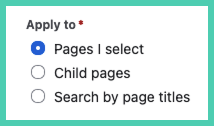
-
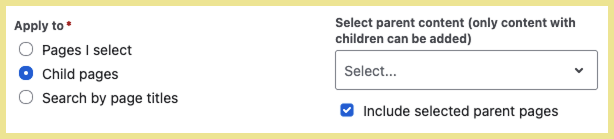
child pages
Search only child pages with an option to include the parent pages. Only pages with child pages will appear in the search as you type.
-
search by page title
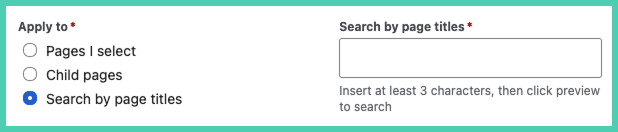
You must have permission to at least view a page for it to show as a search option.
Add labels
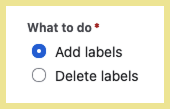
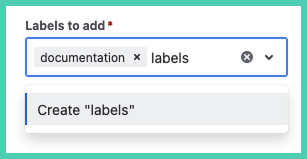
Select labels
Find an existing label. To create a new label type in the name and click enter/return.
Preview and submit
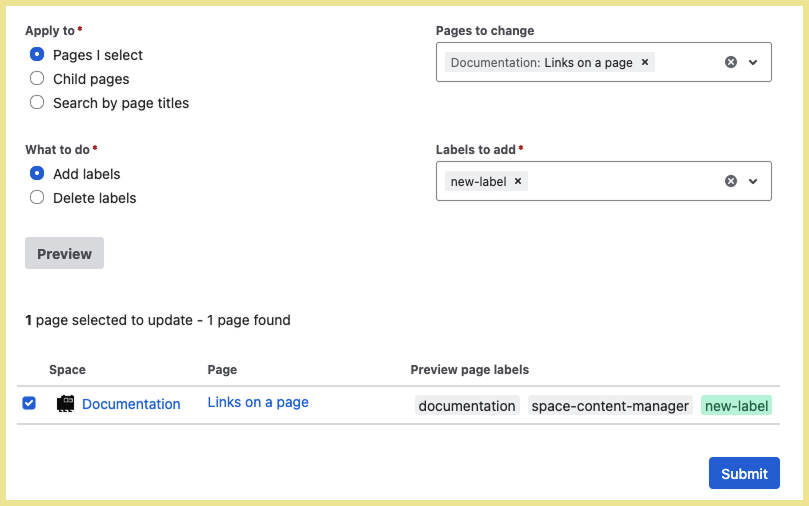
After entering the pages and labels click Preview.

Deselect pages you do not want to change. When you are happy with what you see select Submit.
Confirmation
You then get a confirmation message above the preview. The icon means that page has successfully updated.
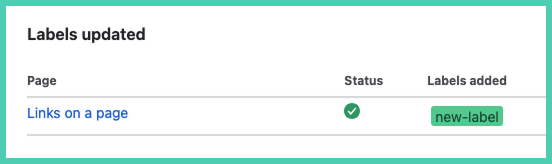
If you want to verify any particular page, click on the title, it is a hyperlink to the page.
A new label is not created until it has been added to at least one page and shown under ‘Labels added’ in confirmation.
Delete labels
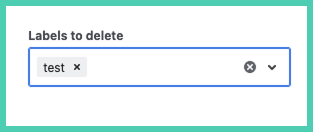
Select labels
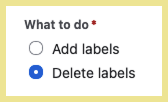
Start typing or select from the drop-down the label or labels that you want to delete.
Preview and submit
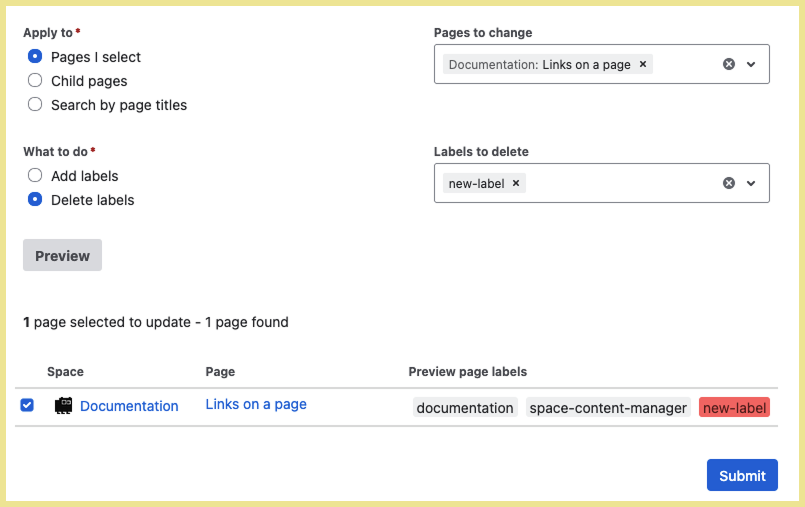
After entering the pages and labels click Preview.
Deselect pages you do not want to change. When you are happy with what you see select Submit.
Confirmation
You then get a confirmation message above the preview. The icon means that page has successfully updated.
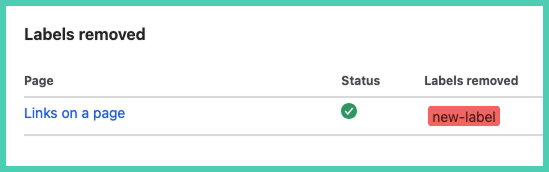
If you want to verify any particular page, click on the title, it is a hyperlink to the page.
For full details on all the label colors and what they mean go to technical notes section what label colors mean.
Merge or rename labels
Only space administrators can change URLs.
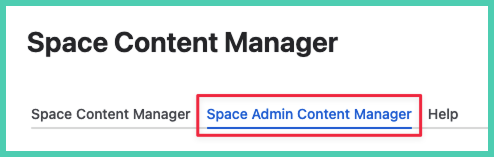
How to access merge or rename labels
Under Apps
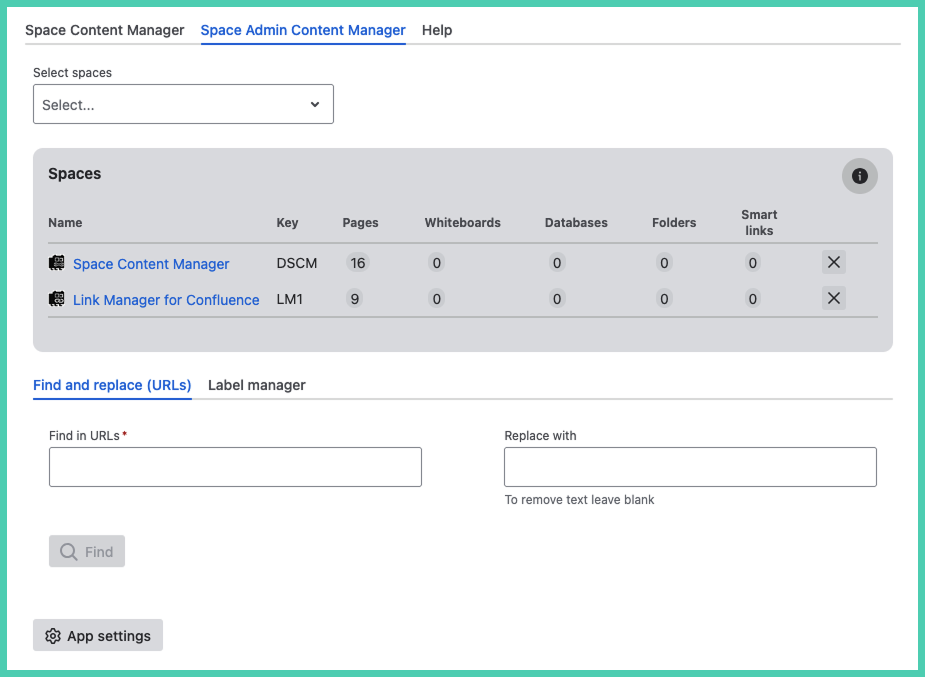
When using Space Content Manager under ‘Apps’ select the tab 'Space admin features', select the spaces where you want to find the labels.
Under Space apps
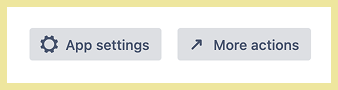
If you are using the app under ‘Space apps’ you need to click the ‘More actions’ button at the bottom. It will take you to space settings. Only administrators see this button as it is an admin only feature.
On the space level version administrators need to lick on ‘More actions’ at the bottom next to ‘App settings’.
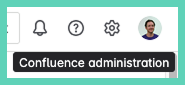
Or go directly to Confluence administration.
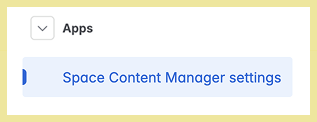
In the left side menu at the bottom under Apps → Space Content Manager.
How to merge labels
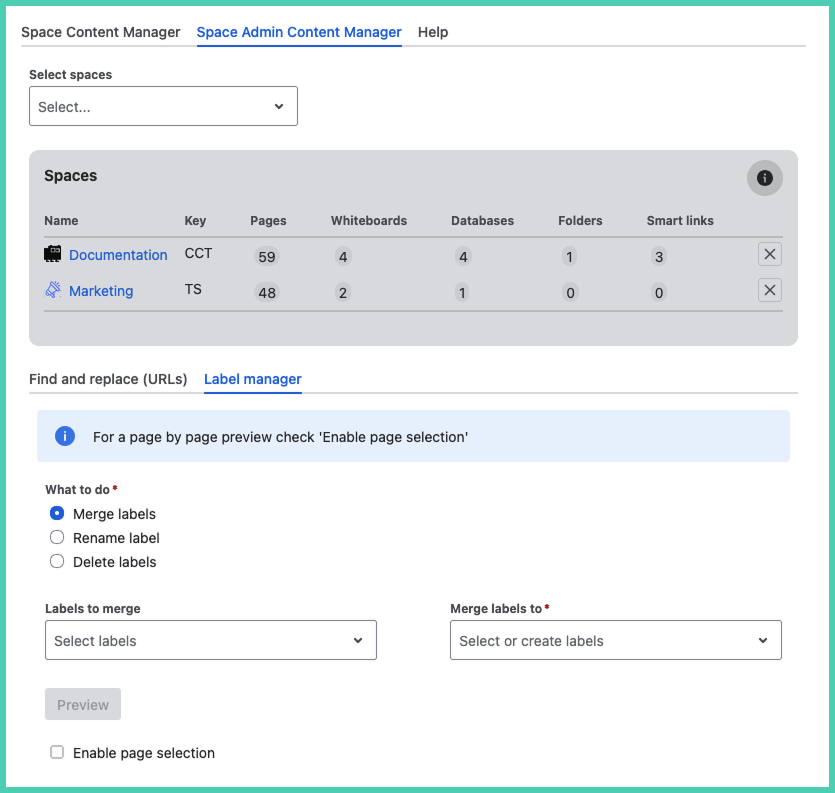
Select one or more ‘Labels to merge’. Then select one ‘Merge label to’.
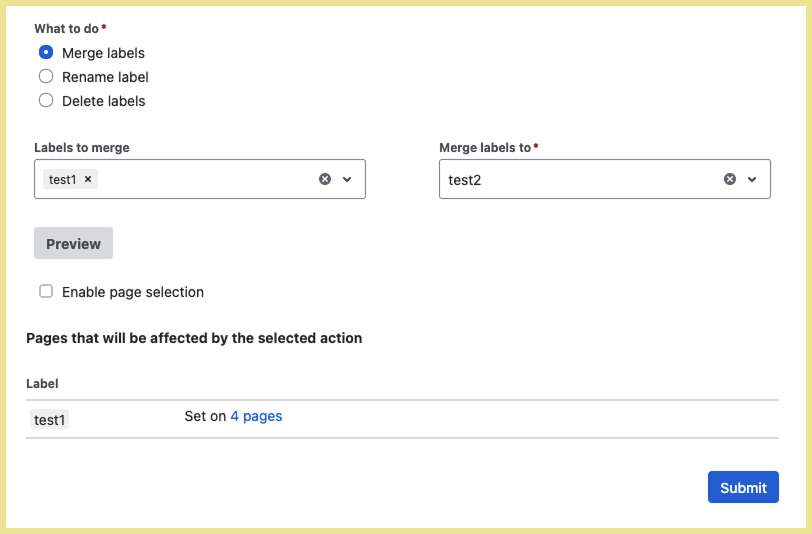
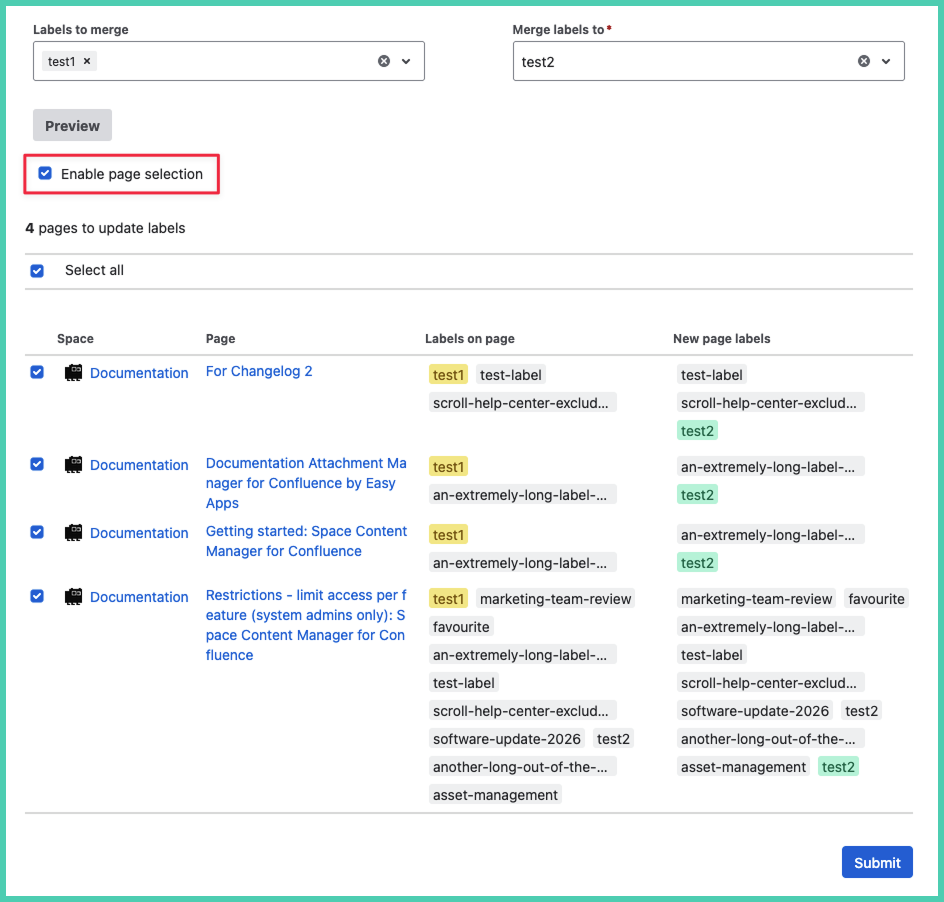
In order to see a breakdown of all the occurrences check the box next to ‘Enable page selection’. Then click preview again.
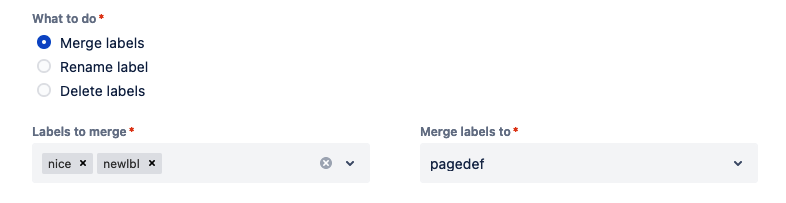
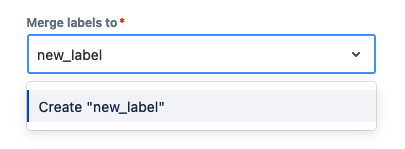
To create a new label to ‘Rename labels to’ type in the name of the new label, then click enter/return:
How to rename a label
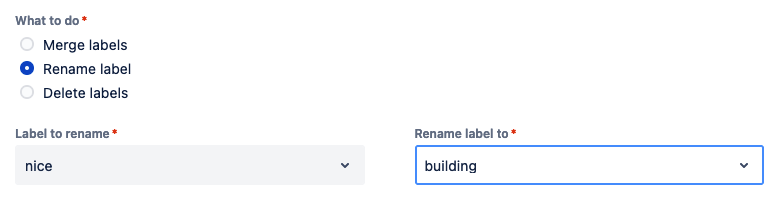
Choose the second option ‘Rename label’. Then choose a ‘Label to rename’ from the drop-down. To rename to an existing label a label in the drop-down under ‘Rename label to’:
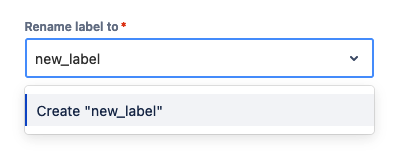
To create a new label to ‘Rename labels to’ type in the name of the new label, then click enter/return:
How to delete labels
Choose the third option ‘Delete label’:
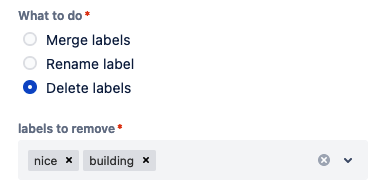
You can choose one label or multiple labels to delete at once.
Preview and finalize
Click preview:
The overview pages tells you how many pages will be impacted by the change:
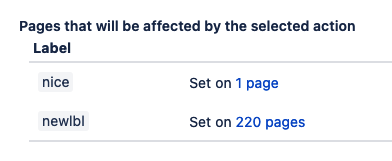
To exclude pages, check ‘Enable page selection’ below the preview button. It opens a more detailed preview:

You have the option to unselect pages from being changed:
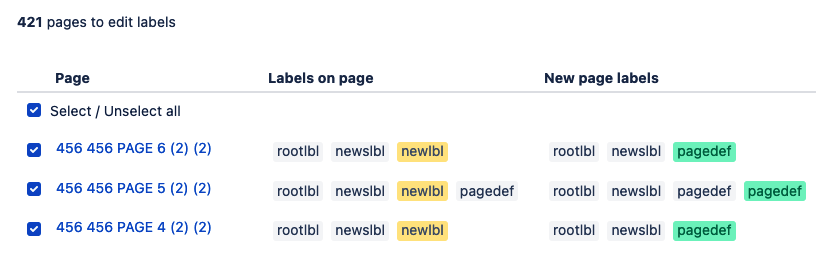
To understand what each highlight color means see the section below what label colors mean.
Run
Click ‘Run’ when ready to make the change:

A confirmation of the results follows:
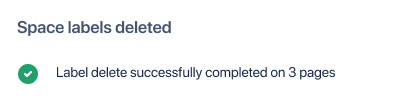
What label colors in preview mean
The color of each label tells you what will happen if you click “Run” and choose to make the changes:
Grey = no change

Green = will be added

Red = will be deleted

Yellow = will be changed if merge or rename
