
What you can do
Across multiple spaces, a single space or on a single page:
-
find text
-
replace text
-
delete text
-
convert to UPPER or lower case
Space administrators only
-
replace part or all of a URL
How to find and replace
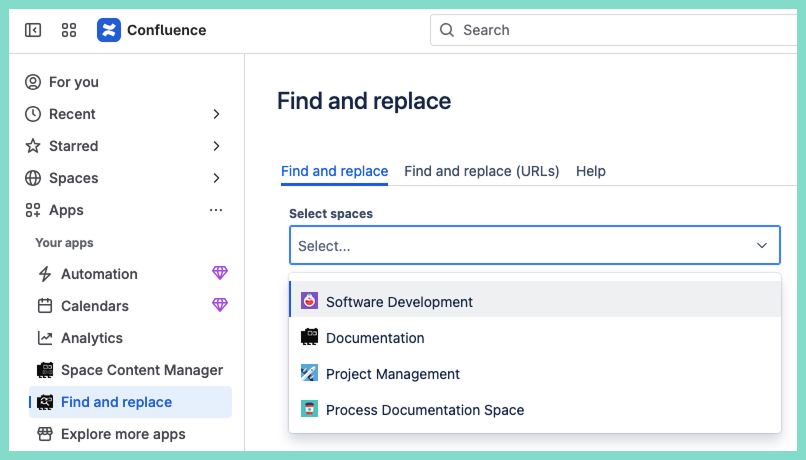
The best way to open the app is under Apps. It allows you to select multiple spaces and it is accessible from anywhere in Confluence.
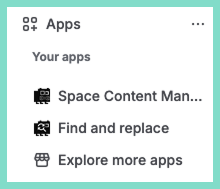
Optionally to use the app only for the current space open it in under ‘Space apps’.
Select pages to search
Option 1: entire space
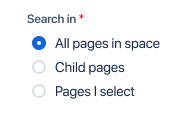
This is the default and searches all pages in the space you are in.
Option 2: choose child pages

Search only child pages with an option to include the parent pages. Only pages with child pages will appear in the search as you type.
Option 3: select pages

Select specific pages to search.
About selecting pages to search
-
only searches pages in the space you are in
-
to search in a different space open Space Content Manager in that space
-
-
you must have permission to at least view the page
-
child pages
-
only parent pages that have children can be searched
-
Choose what to replace
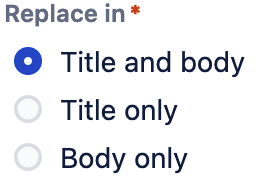
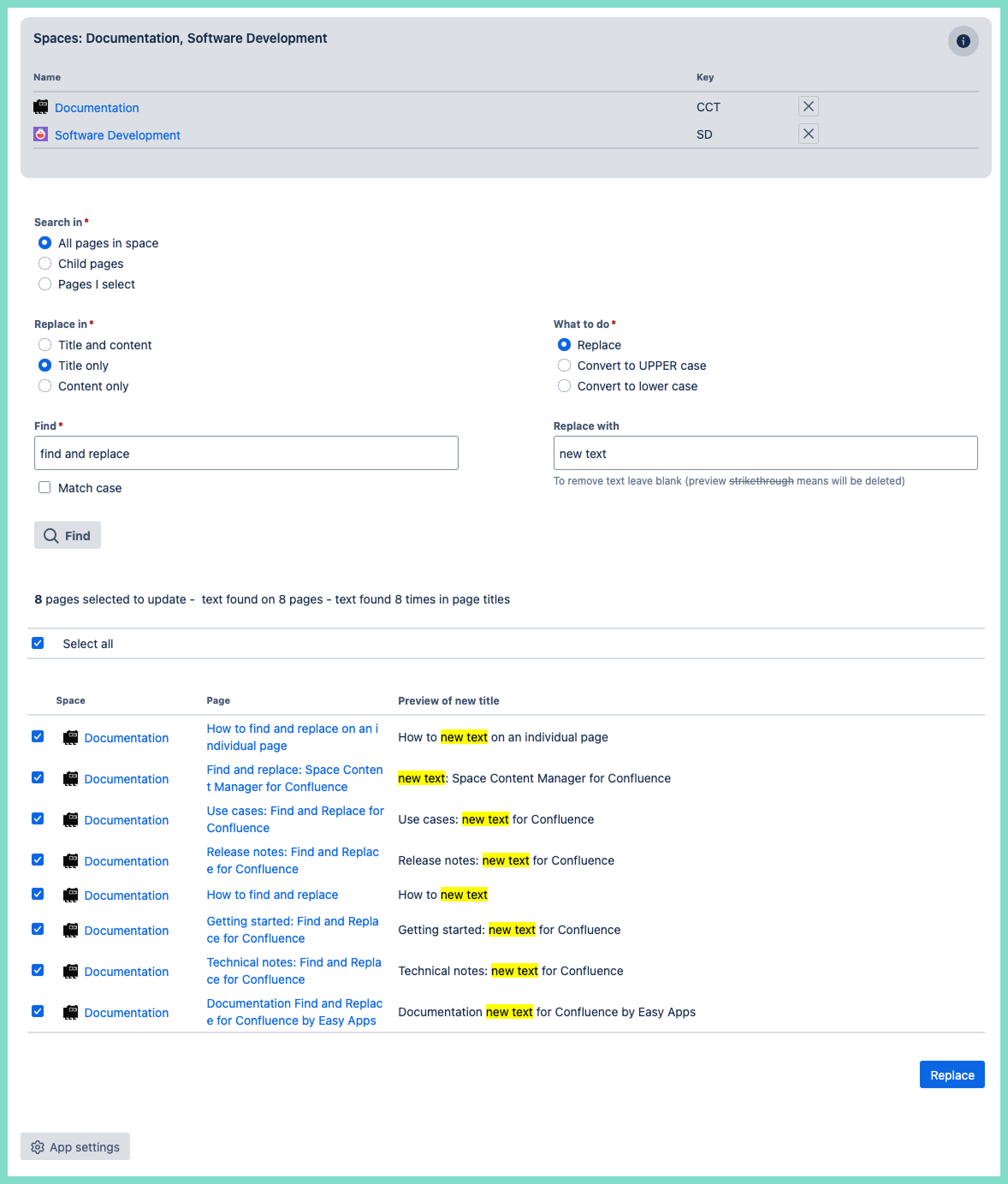
Title and body is the default. Option to restrict search to only title or only body.
Replace or change case
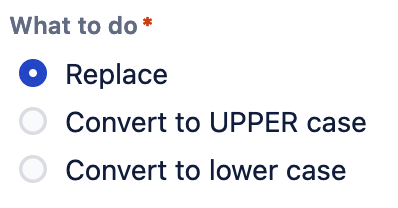
Most of the time the default Replace is desired. But there are also options to convert to upper case or lower case.
Find
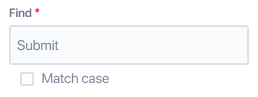
Use as many terms as you wish.
Supports:
-
most special characters like &, %, $, #
-
languages not using the Latin alphabet
-
Japanese, Chinese, Arabic, Greek, Hindi and more
-
Tip: use match case if possible to restrict the results.
Replace

Replace text is case sensitive.
Delete
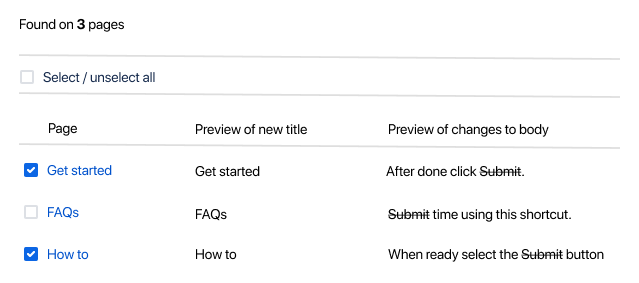
To delete terms, enter them in the Find field. Then leave the Replace field blank. Terms to be deleted displays in the preview with a strikethrough.
URL editing not supported
Find and Replace by Easy Apps only changes the text of the URL. It does not change the underlying URL itself. This limitation also applies to the text of emails and phone numbers.
Solution
Download our app Space Content Manager. Edit URLs under ‘Link manager’ tab. The app includes all the features of Find and Replace by Easy Apps.
Preview
Click the Find button to preview the changes.

The Find button will change to a spinning icon as the app searches the pages. If your space has a large number of pages please be patient.
The proposed change is highlighted in yellow. Deselect pages you do not want to change.
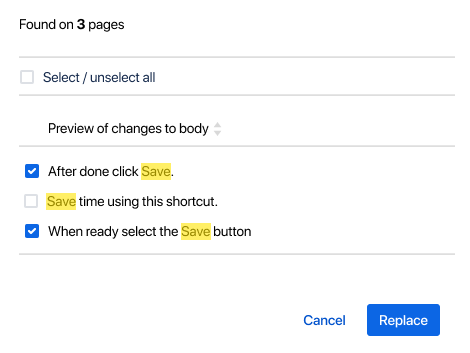
If the Replace field is left blank the terms are deleted. They are displayed with a strikethrough.
Confirm
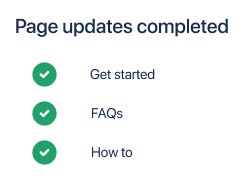
When happy with the preview click Replace.


Find and replace URLs (space admins only)
Two options to access this feature.
Click the ‘More actions’ button at the bottom.

Or go to Space Settings.
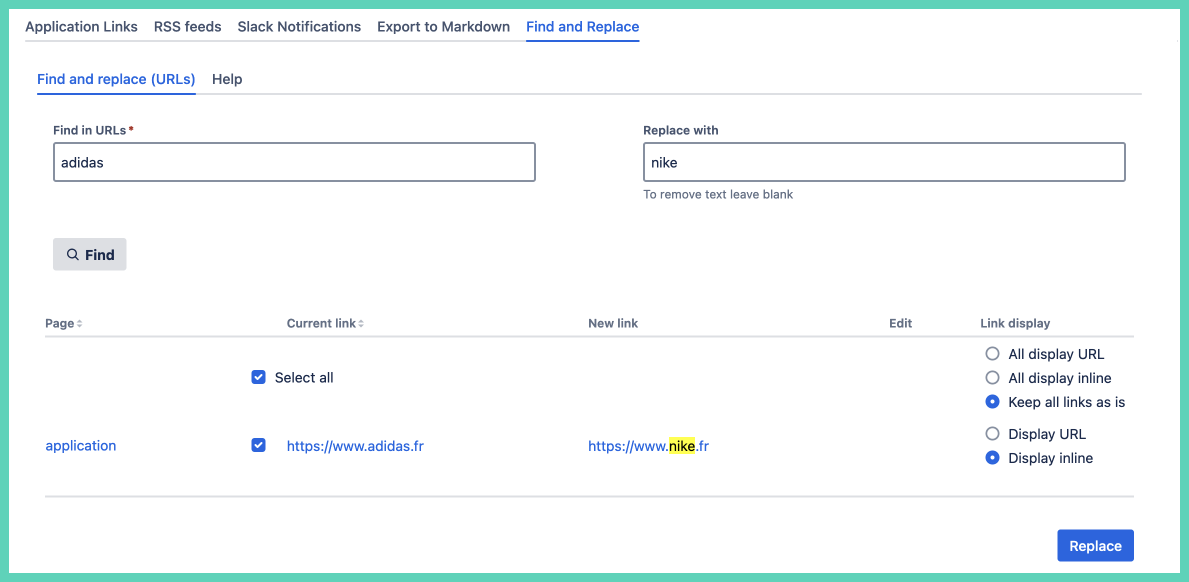
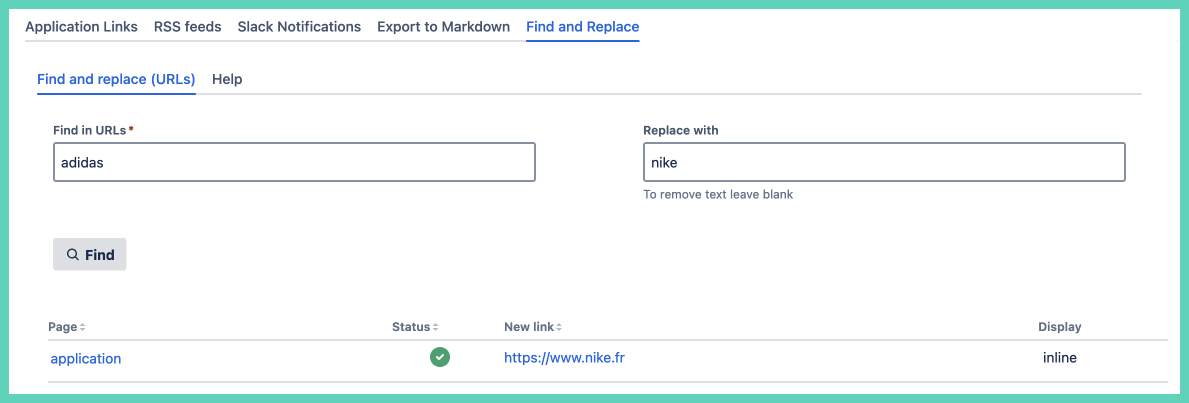
Replace part or all of a URL.
Start by searching for the part of the URL you want to change. Then enter want you want to replace it with. The preview will highlight the change in yellow.
To delete a term leave replace blank. Te preview will show the term to be deleted with a strikethrough.
Technical notes
Supports
-
large instances (thousands of pages)
-
most special characters like &, %, $, #
-
languages not using the Latin alphabet
-
Japanese, Chinese, Arabic, Greek, Hindi and more
-