
What you can do with label manger in Space Content Manager
All users can:
-
add labels or delete labels
System and space administrators can also:
-
merge, rename or replace labels
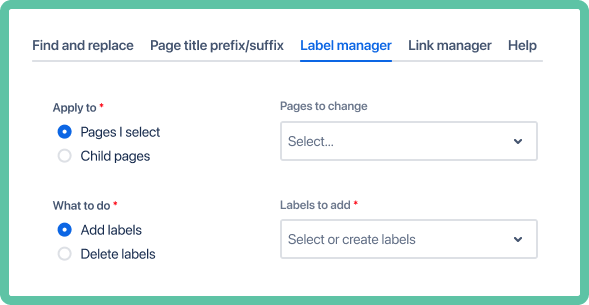
Select pages to search
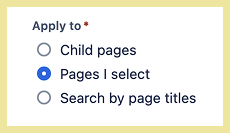
Pages I select
The default is to select individual pages:
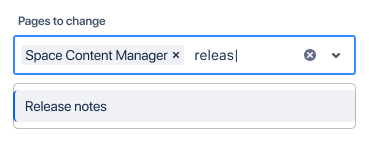
Choose one or multiple pages by searching the page name:
Child pages
The other option is selecting child pages.
Note that it includes the parent page:
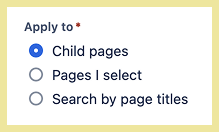
Choose one or more parent pages to make changes to all the related child pages:
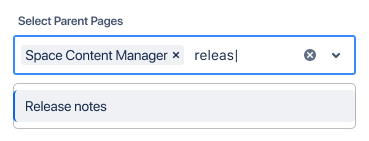
About selecting pages to search
-
only searches pages in the space you are in
-
to search in a different space open Space Content Manager in that space
-
-
you must have permission to at least view the page
-
child pages
-
only parent pages that have children can be searched
-
Add labels
Adding labels is the default:
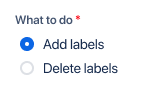
Search to find an existing label and/or create a new label by typing the name of the new label and clicking enter/return:
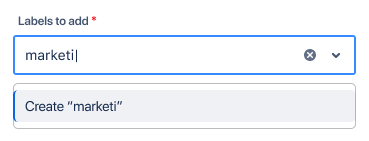
A new label is not created until it has been added to at least one page and Submit is clicked.
Delete labels
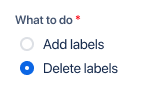
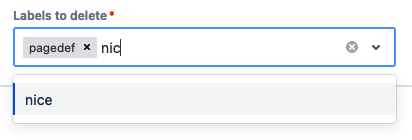
Start typing or select from the drop-down the label you want to delete. You have the option to delete multiple labels as the same time:
Preview and save
Click preview:

An example of a result:
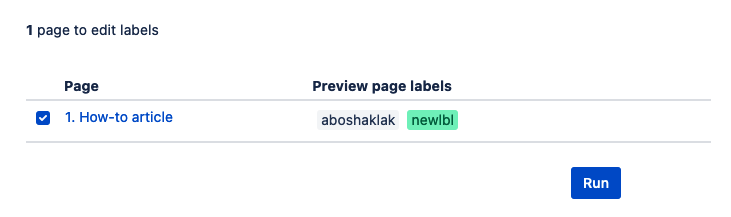
To understand what each highlight color means see the section below what label colors mean.
When you are happy with the preview click:
A confirmation of the results follows:

Merge or rename (admins only)
Only system and space administrators see the button More actions.
Option 1: click More actions
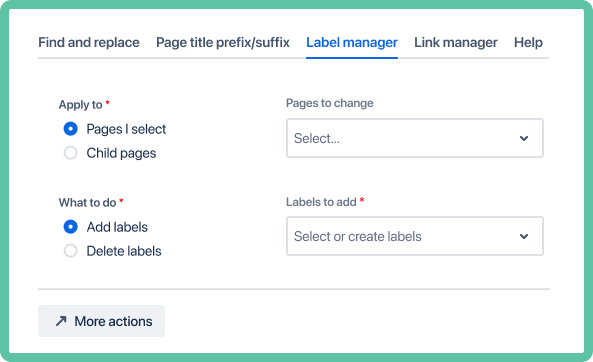
Option 2: Space settings → Integrations → Space Content Manager → Label manager
How to merge labels
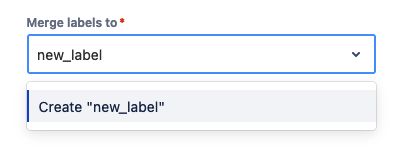
Merge is the default choose. You must select at least two ‘Labels to merge’. Then select one ‘Merge label to’:
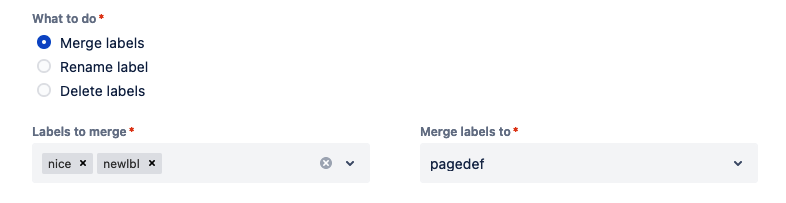
To create a new label to ‘Rename labels to’ type in the name of the new label, then click enter/return:
How to rename a label
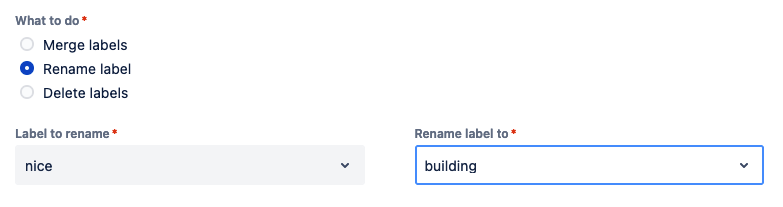
Choose the second option ‘Rename label’. Then choose a ‘Label to rename’ from the drop-down. To rename to an existing label a label in the drop-down under ‘Rename label to’:
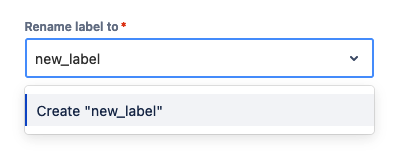
To create a new label to ‘Rename labels to’ type in the name of the new label, then click enter/return:
How to delete labels
Choose the third option ‘Delete label’:
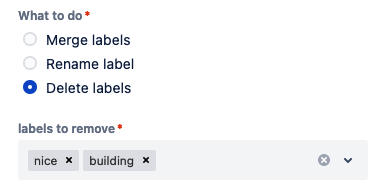
You can choose one label or multiple labels to delete at once.
Preview and finalize
Click preview:
The overview pages tells you how many pages will be impacted by the change:
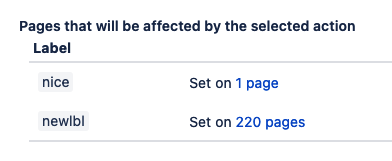
To exclude pages, check ‘Enable page selection’ below the preview button. It opens a more detailed preview:

You have the option to unselect pages from being changed:
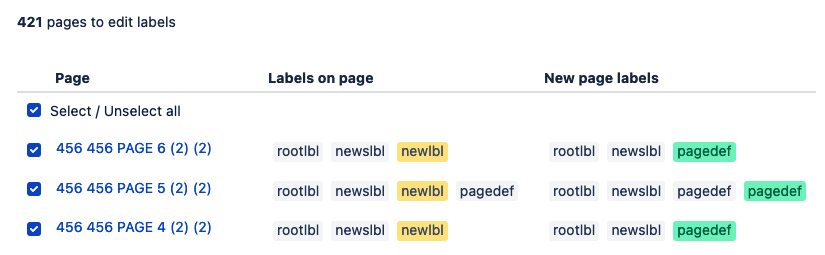
To understand what each highlight color means see the section below what label colors mean.
Run
Click ‘Run’ when ready to make the change:

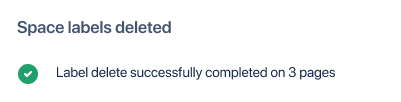
A confirmation of the results follows:
What label colors mean
The color of each label tells you what will happen if you click “Run” and choose to make the changes:
Grey = no change

Green = will be added

Red = will be deleted

Yellow = will be changed if merge or rename

Use case: label related pages
A user is responsible for organizing Confluence content and wants to ensure that all pages related to a specific initiative are easily discoverable. All relevant pages include a unique keyword 'Q4-Review' in the title.
Instead of manually searching for each page and adding labels one by one, the user uses the ‘Search by page titles’ feature and enters ‘Q4-Review’.
What to do
-
enter common title text in the 'Search by page titles' field
-
click preview to display all pages with that text in the title of the page
-
select pages to exclude
-
apply a label (such as ‘quarterly-review’) to all selected pages