Must have system administrator access
What system administrators can do
-
limit any feature by space
-
limit any feature by group
-
limit any feature by user
-
enable/disable any feature across a Confluence instance
Examples:
-
in space 'Finance' only space admins can use Label Manager
-
in space 'Team' user 'Carlos' cannot use Page title prefix/suffix
-
disable Find and Replace for all users
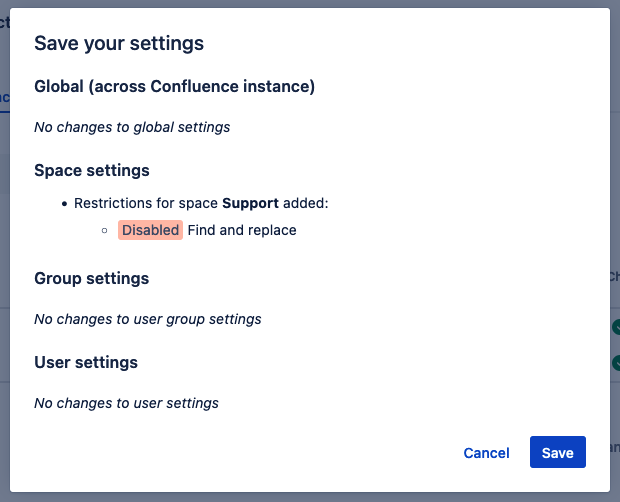
Must confirm changes for restrictions to update
Nothing changes until you click Save on the preview. To get to the preview you first have to click Save and then Save on the confirmation popup.
How to access restrictions
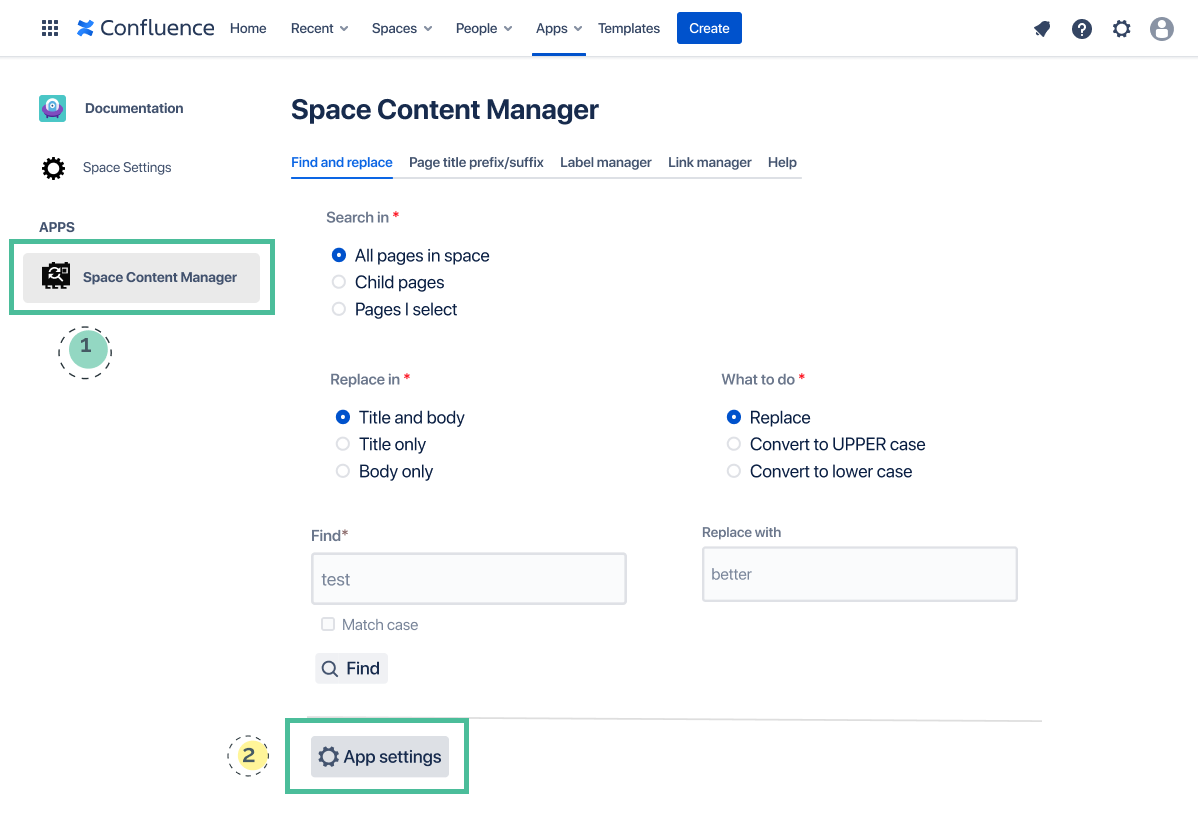
Option 1: within the app
-
Open app from any page under Apps
-
Click button ‘App settings’ (only system administrators see this button)
Option 2: via Confluence administration
-
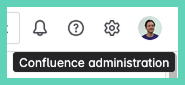
Click on the Confluence administration gear icon in the top right
-
Under ‘Apps’ click on ‘Space Content Manager settings’
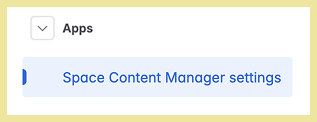
How to enable/disable a feature across Confluence instance
Under the Global tab toggle to enable/disable a feature (also called a module). By default, all modules are enabled:
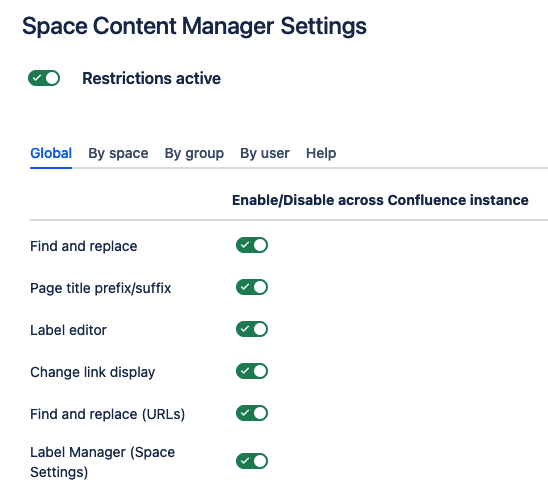
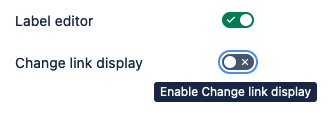
When you disable a feature under Global:
-
not visible to any user (includes system and space administrators)
-
does not show in any space
Nothing changes until you get to the preview popup after clicking Save. Then again click Save to confirm.
How to enable/disable a feature by space
Under the By space tab toggle to enable/disable a feature (also called a module). By default, all modules are enabled:
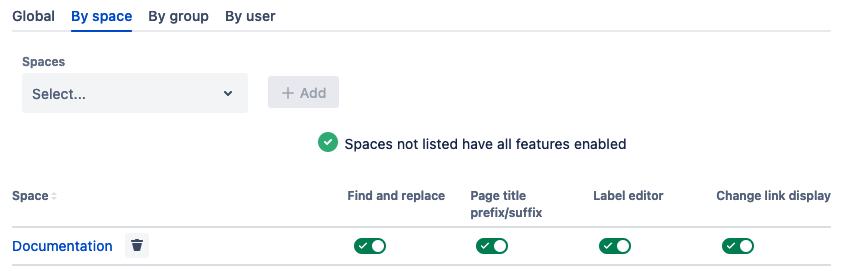
To add a space to the list in order to edit the access to a feature:
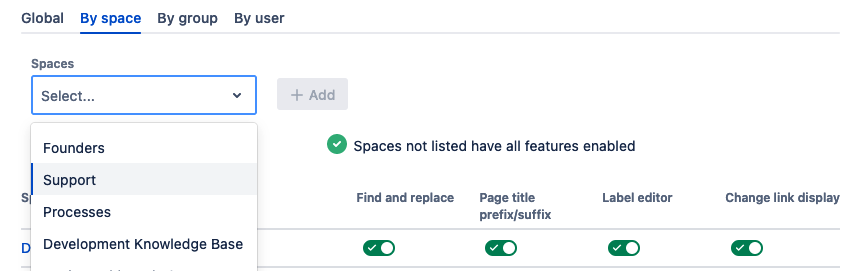
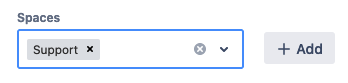
Add the space you have selected. You can choose multiple spaces to add at the same time:
Once the space is added you can enable/disable a feature per space:
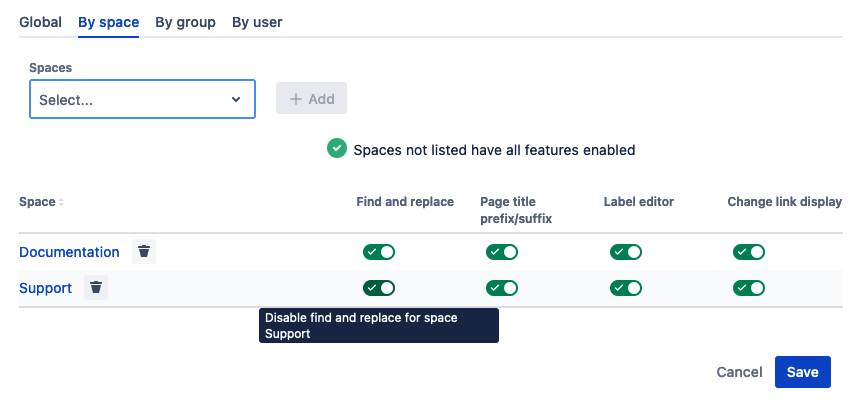
Nothing changes until you get to the preview popup after clicking Save. Then again click Save to confirm.
How to enable/disable a feature by group
Under the By group tab toggle to enable/disable a feature (also called a module):
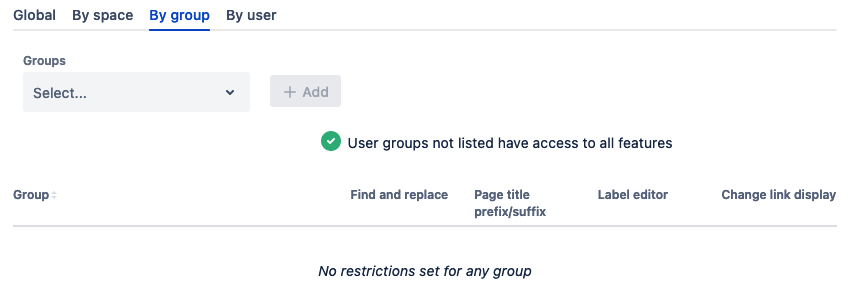
To add a group to the list in order to edit the access to a feature:
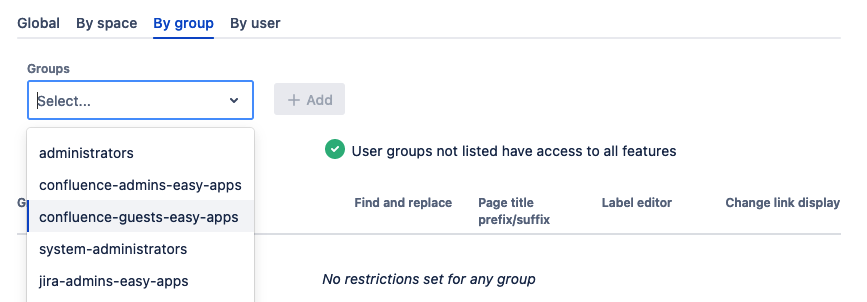
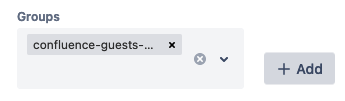
Add the group you have selected. You can choose multiple groups to add at the same time:
Once the space is added you can enable/disable a feature per space. By default, all modules are enabled:
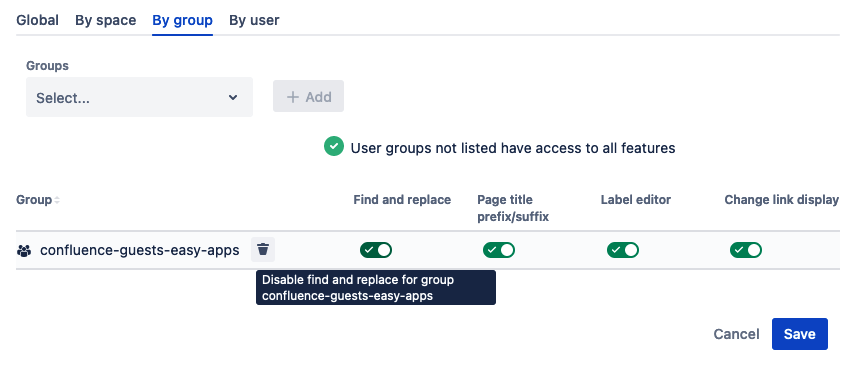
Nothing changes until you get to the preview popup after clicking Save. Then again click Save to confirm.
How to enable/disable a feature by user
Under the By user tab toggle to enable/disable a feature (also called a module). By default, all modules are enabled:
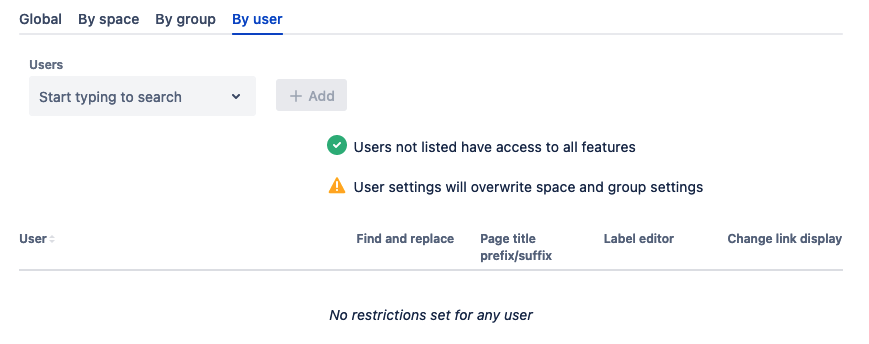
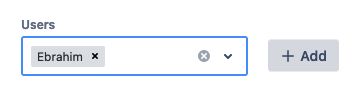
To add a user to the list in order to edit the access to a feature:
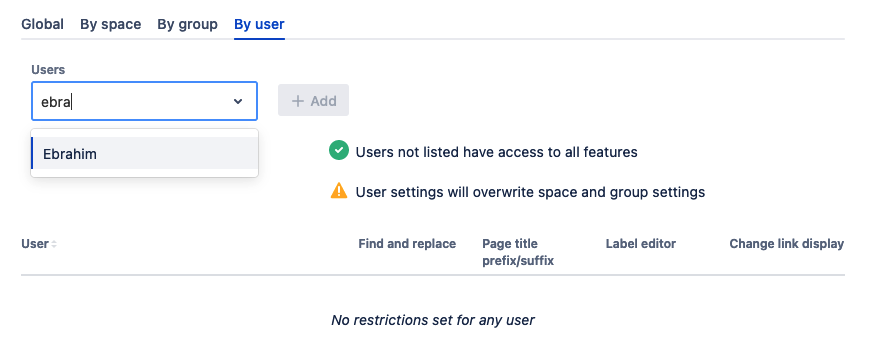
Add the user you have selected. You can choose multiple users to add at the same time:
Once the user is added you can enable/disable a feature per user. By default, all modules are enabled:
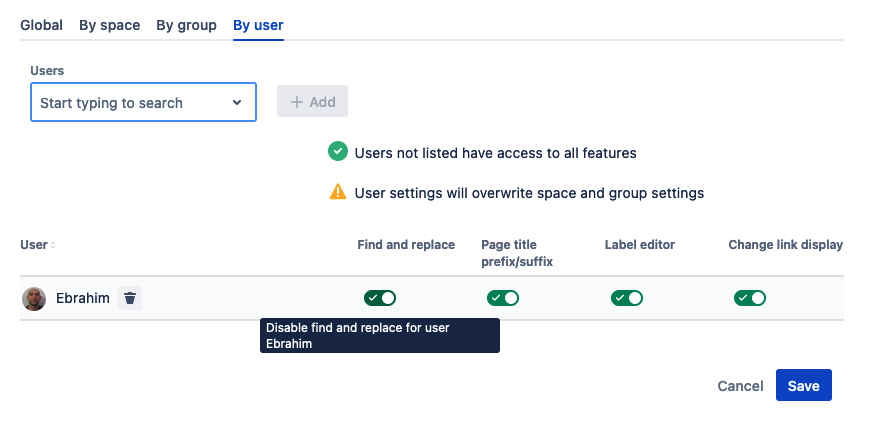
Nothing changes until you get to the preview popup after clicking Save. Then again click Save to confirm.
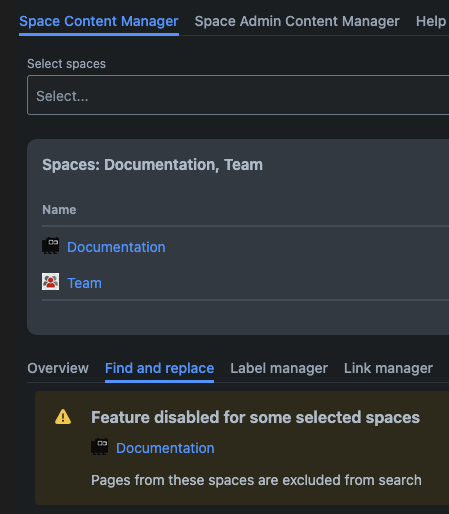
Use case: restricting a feature from a single space
When restrict a feature (in technical language it is called a module) you will see a change to how the app appears and some additional messaging.
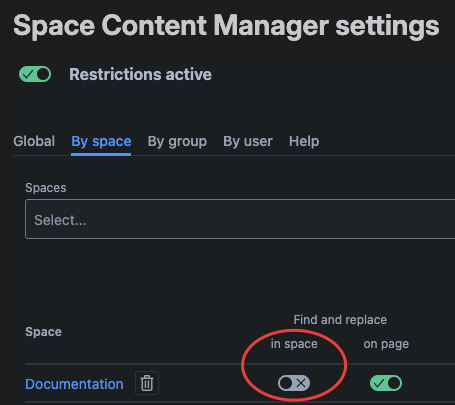
Find and replace disabled from space Documentation
In this example we disabled the feature ‘find and replace’ for the space ‘Documentation’.
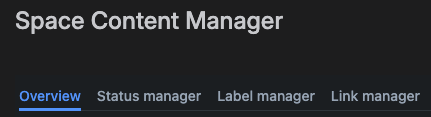
Under Space Apps
When access Space Content Manger at the space level under Space Apps ‘Find and replace’ is no longer visable.
Global page
When Space Content Manager is opened under Apps (global page) where can edit multiple spaces at the same time the UI changes depending one which spaces are selected.
If on the space where the feature has been disabled is selected it will look like this. As you can see unlike under Space Apps the feature still shows in the menu.
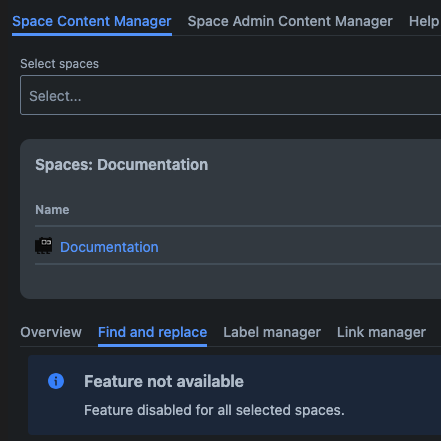
If at least one space where the feature is available is selected then the text looks like this.