Edit title, status, owner, labels or see metadata under Overview (formally Home) which is the default tab.

How to access Overview (formally Home)
View under Apps for editing across spaces.
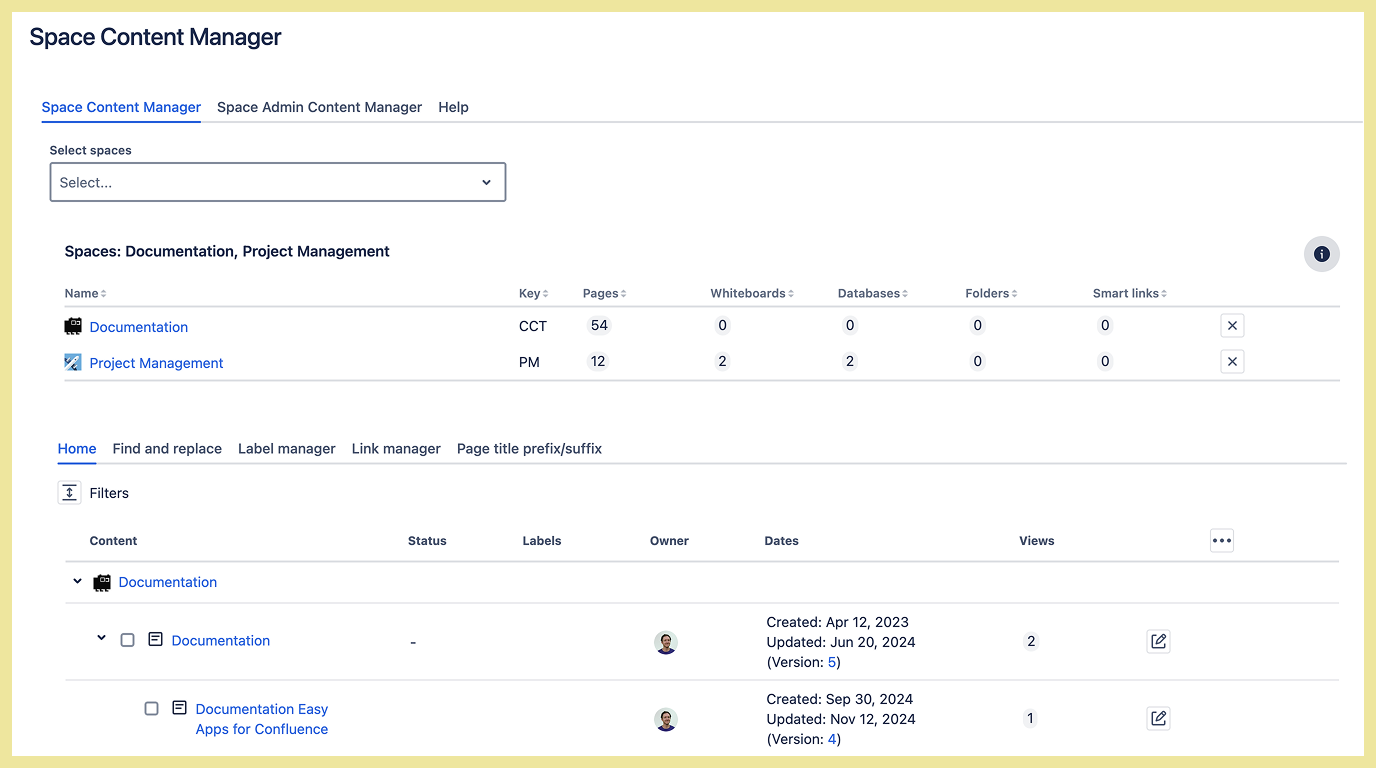
View under Space apps (edit a single space)
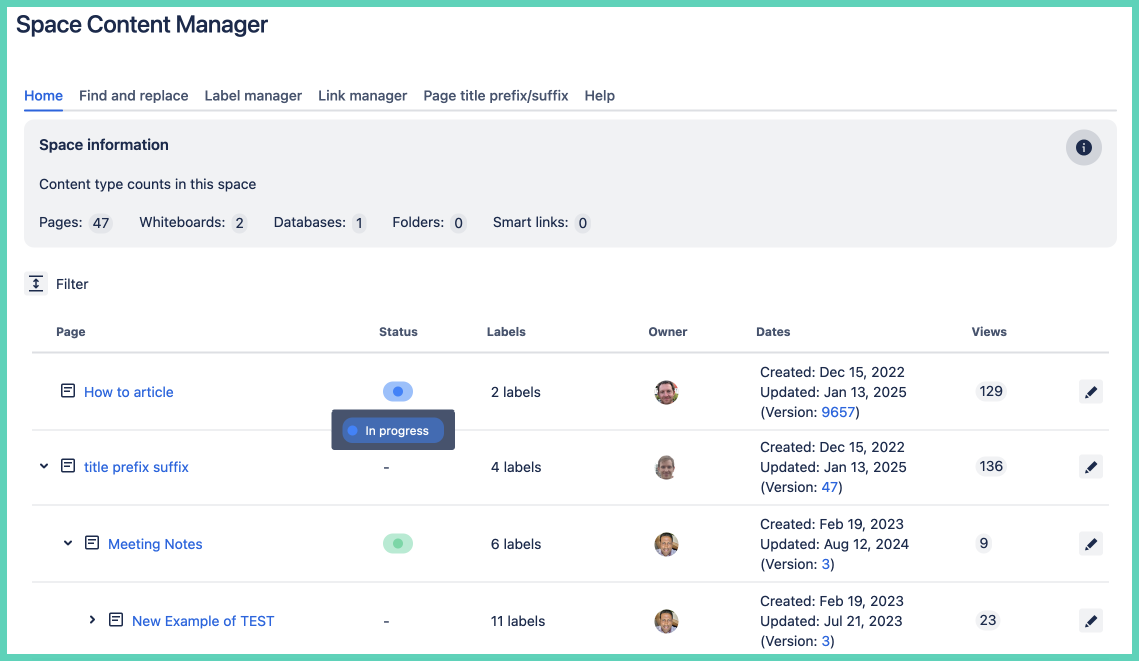
Space information overview
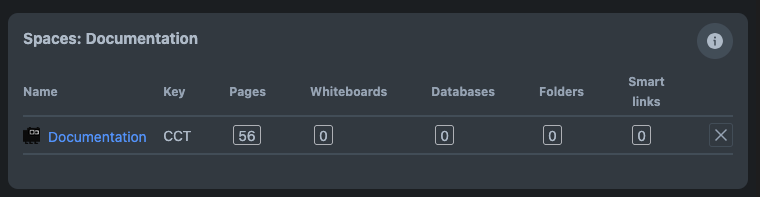
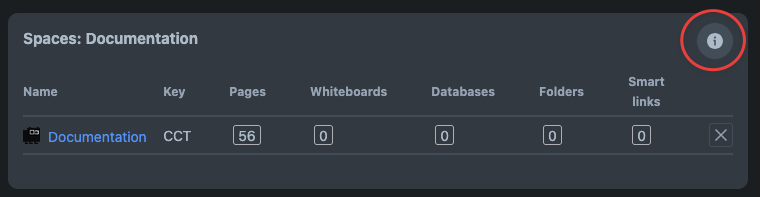
After selecting spaces to edit this appears:
-
pages
-
whiteboards
-
databases
-
folders
-
smart links
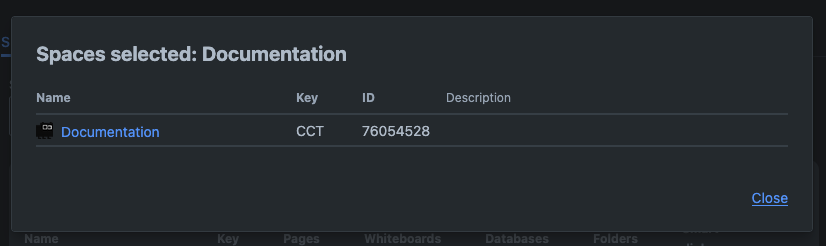
Click on the 
-
space key
-
space ID
-
space description
What you can view
-
page status (if any)
-
labels
-
owner
-
page creation date
-
page last updated date
-
number of versions (with link to view each)
-
number of pageviews
What you can edit
-
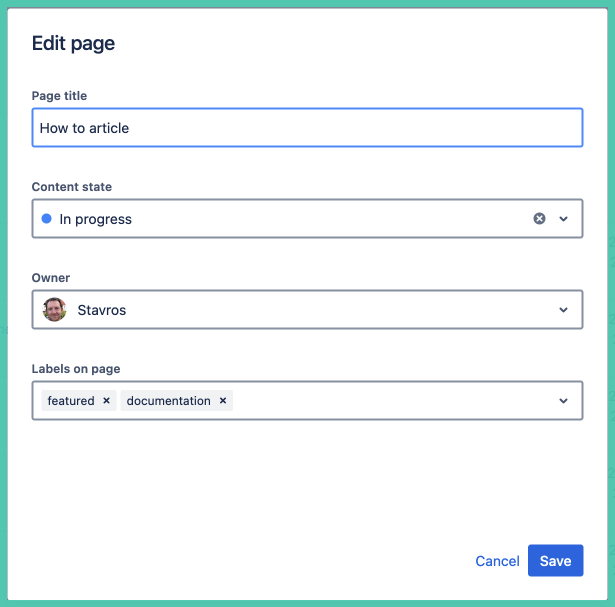
page title
-
status
-
owner
-
labels
How to edit page title, status, owner and labels
Click the edit icon at the right of the page you want to edit. Bulk edit option appears if you select more than one page:

Edit and click save:
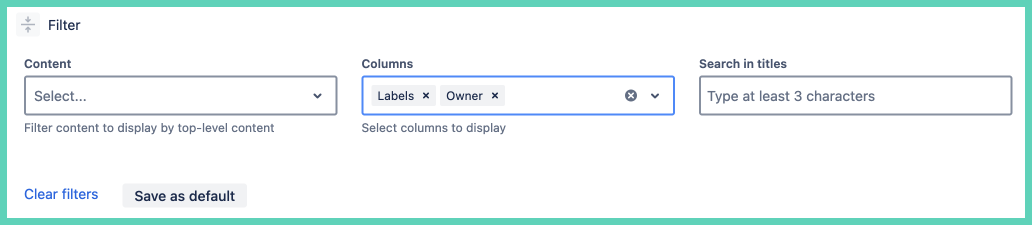
Filter results
Filters are collapsed by default.

Click on the filter icon to see the filters.

All space pages are shown by default. To limit pages that are displayed use:
-
Content
-
Search in titles
Limit columns to display
Choose the columns you want to display. Those you do not select will be excluded.
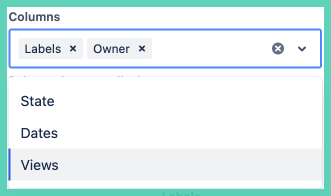
Page column cannot be excluded.
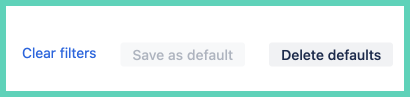
Save filter setting
When you save a current filter it will be set each time you open Space Content Manager.
To permanently delete the filter select Delete defaults.