
Installing the app
Only a system administrator can install apps (sometimes called an add-on or plugin).
Install via the web
Go to the Atlassian Marketplace listing for Attachment Manager.
Install within Confluence
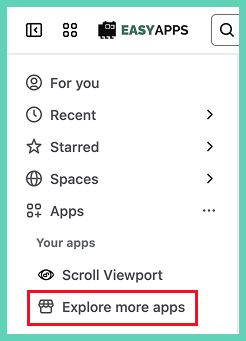
Under apps select ‘explore more apps’.
How to access Attachment Manager once installed
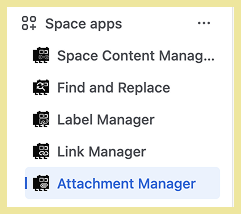
On any page in the left side menu scroll down and under ‘Space apps’ select Attachment Manager.
Permissions
The functionality of the Attachment Manager respects and adheres to the Confluence space permissions. What you can view, modify, or manage is determined by your assigned permissions within the space.
If you have questions about your access, please contact your Confluence administrator.
Select pages to search
Entire space
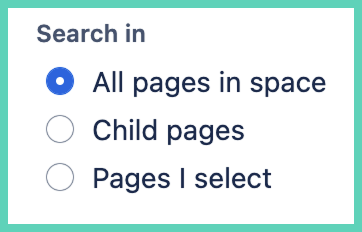
This is the default and searches all pages in the space you are in.
Choose child pages
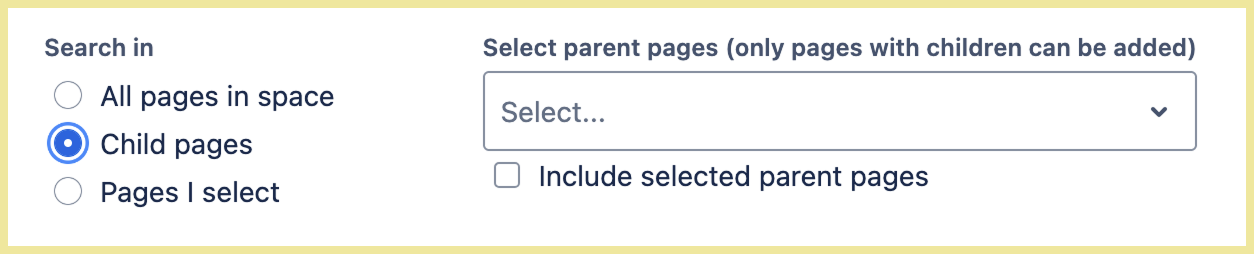
Search only child pages with an option to include the parent pages. Only pages with child pages will appear in the search as you type.
Select pages
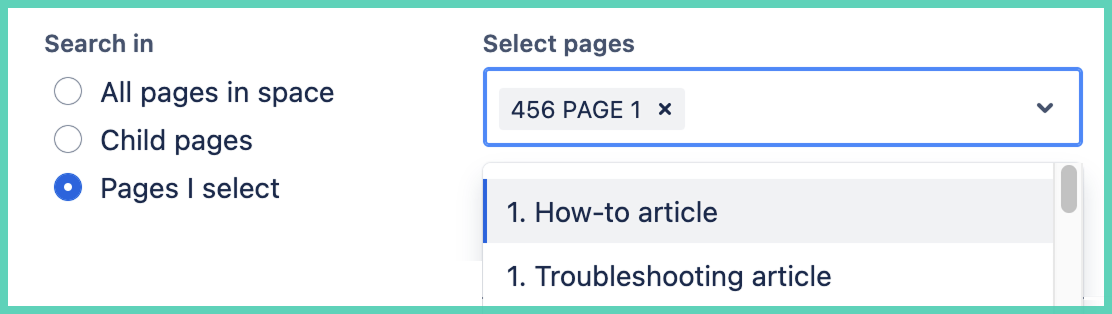
Select one or more pages to search.
About selecting pages to search
-
only searches pages in the space you are in
-
to search in a different space open Attachment Manager in that space
-
-
you must have permission to at least view the page
-
child pages
-
only parent pages that have children can be searched
-
Filters
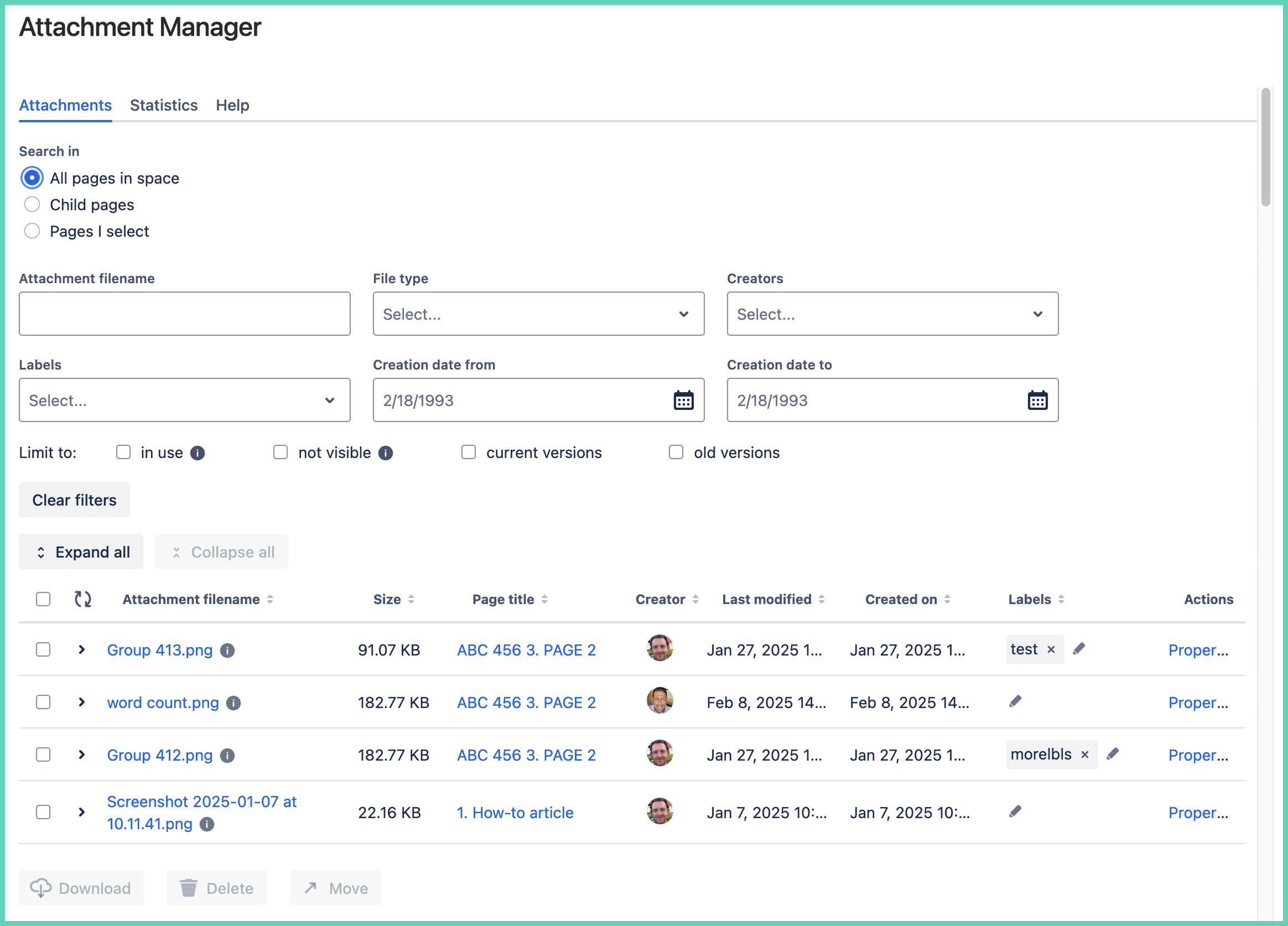
All attachments are shown by default. Then you have multiple filter options to narrow results.
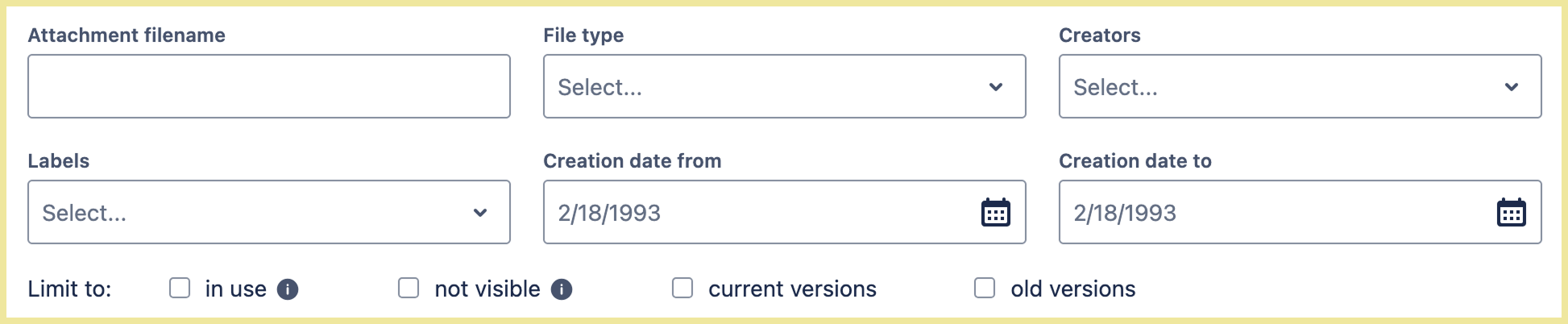
-
combine filters
-
select multiple file types, creators and/or labels
Limit to ‘in use’
Attachment shown on at least one page in the space. Selecting it limits results to only attachment visible on a page.
Limit to ‘not visible’
Attachments are not shown on any page in the space. Selecting it limits results to only attachment that are not visible on a page.
-
older versions of an image (when replace an image the older version is stored)
-
orphaned images (have been removed from the page but that does not delete them, they are still stored in Confluence)
-
images saved in Confluence (example use an app that stores images in folder but they do not appear on any pages)
Limit to ‘current versions’
If you update an attachment the older version is still stored. Confluence does not automatically delete an attachment when it is removed from a page.
Use case
-
want to get the latest version of x and y attachments for a marketing campaign
Limit to ‘old versions’
An older version may or may not appear on a page. It means that in Confluence a newer version exists. The newer version may or many not appear on a page.
Bulk actions: download, delete, move
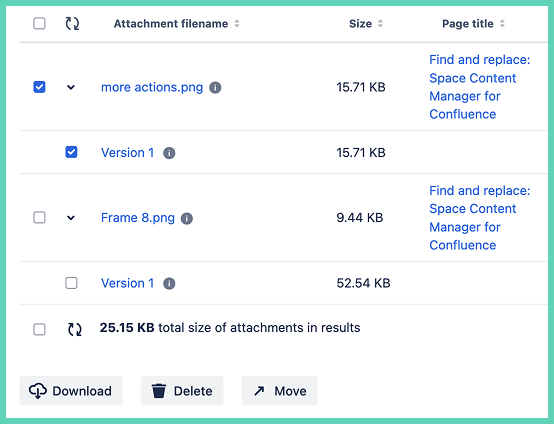
Select the attachments you want to make a bulk change to then select the bulk action download, delete or move.
Downloading happens immediately.
Delete and move come with a preview.
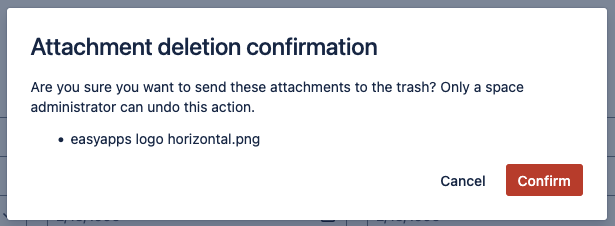
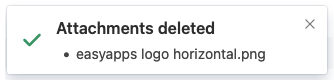
Then a popup appears to confirm that it worked.
Statistics
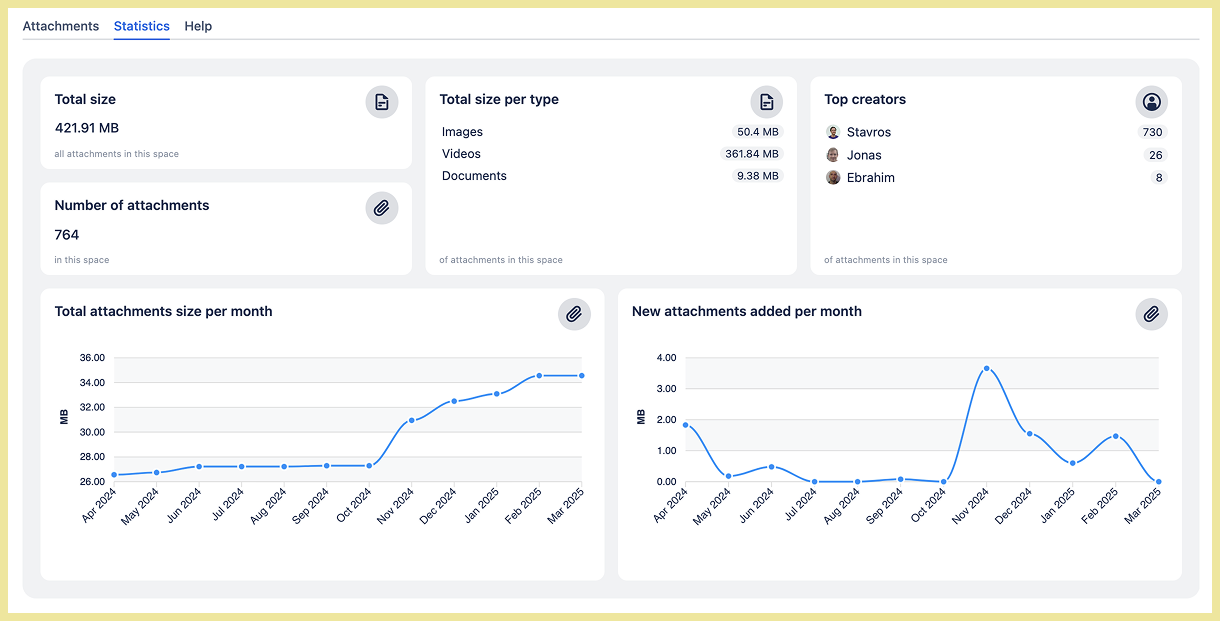
See the following analytics about Confluence attachments in a space.
-
size
-
number of attachments
-
size per file type
-
creators
-
size per month
-
new per month
Limitations
-
WebP previews are not supported by Confluence, you must download to few a WebP file