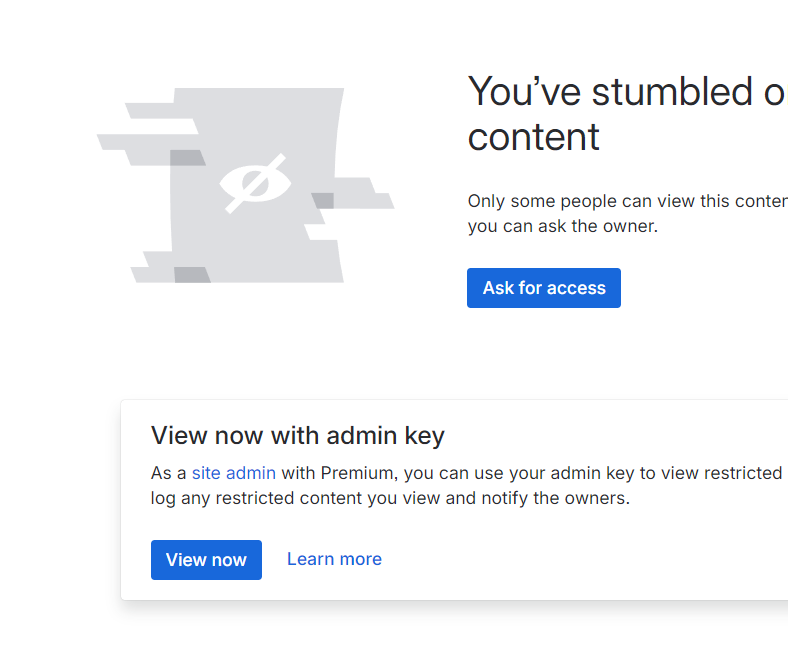

Never manually delete macro at top of the page with a redirect

If you delete this macro the redirect will stop working.
This macro appears at the top of all pages that have added a redirect. Do not delete it even if the redirect is disabled.
The app must insert this macro. Confluence does not allow for a ‘301 Moved Permanently’ that you might use in tools like WordPress.
How to delete a redirect
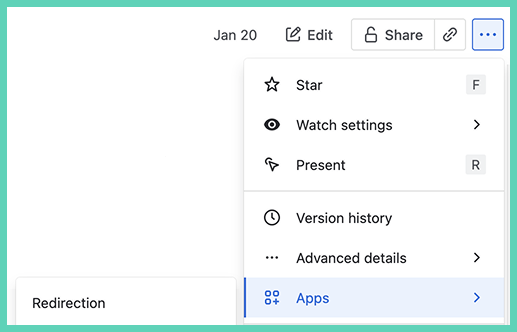
On a page
‘More actions’ menu.
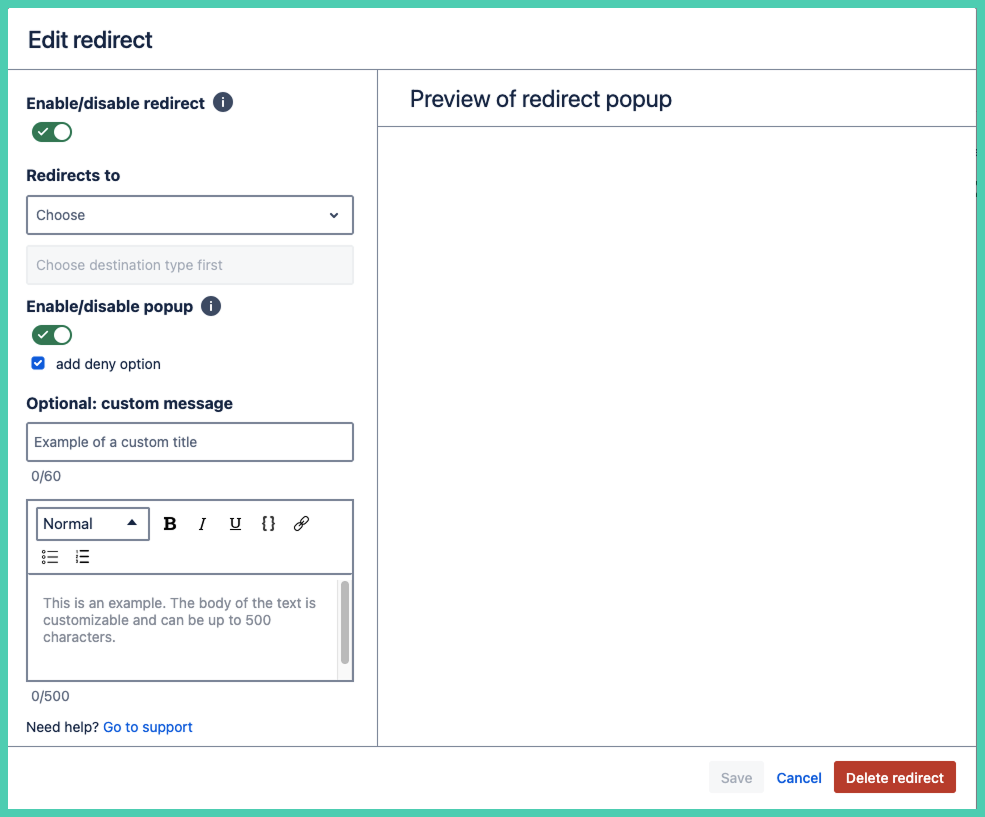
Click the red button ‘Delete redirect’.
In bulk
Under Confluence administration → Apps.
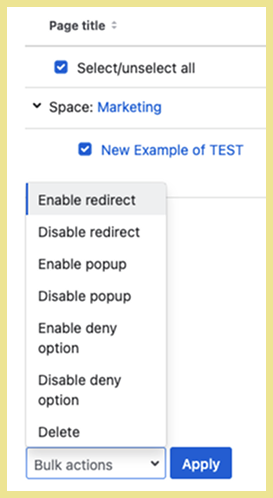
Select the redirects that you want to delete and then select delete in bulk actions.
Not supported
Legacy editor
Redirection does not support the legacy editor.
HTML
HTML is not allowed in the custom message fields. The WYSIWYG editor is the only option. It allows to create headings, bold, italics, underline, monospace, bullet points or numbering.
Archived pages
You must first restore an archived page before you can edit an existing redirect or add a new redirect. It is not possible to edit a Confluence page while it is archived.
Restore page (de-archive page)
There are two ways to restore an archived item back to the content tree:
-
directly from an archived item
-
from the archived pages list in the archive
When you have finished editing the redirect you can re-archive the page.
Enable/disable popup
Redirecting within same Confluence instance
A popup to confirm within the same Confluence instance is optional.
If the popup is disabled, after the page fully loads the user will be taken to the Confluence page it is set to forward to.
This makes it difficult to get to edit mode for the page that has a redirect placed on it. See note Getting to edit model when deny disabled.
Confirm before going to external URL
A popup to confirm before going to an external URL is required.
Atlassian requires the popup with a warning message and a confirmation button in order to proceed to all external URLs. A redirect to an external site cannot happen without this popup.
Atlassian does this for security reasons. Many users and developers are complaining that this is too restrictive. In the future Atlassian might create a list of URLs that do not require a confirmation or do away with the requirement entirely. But no timeline has been given.
Getting to edit mode when deny disabled
There is no direct way to get to edit mode on the page with a redirect if you remove the button to deny the redirect. This is also the case when the entire popup is disabled.
Workaround
Be quick. It must be done before the redirect page macro loads. Click anywhere on the page outside of the redirect popup (if has one). Then click the esc button on your keyboard. No harm clicking it multiple times.
If it doesn’t work reload the page and try again.
Restricted pages
No user, including administrators, can see, create or edit a redirect on a page that they do not have permission to view/edit. These restrictions are set by Atlassian, not us. Learn more.
Pages you are restricted from accessing do not show up in:
-
the ‘Existing redirects’ tab
-
the ‘Create redirects’ tab
-
all input/filter fields (no autocomplete, can’t view/select the page)
Additionally, you cannot set redirects on restricted pages using the JSON import feature.
How an administrator can view redirects on restricted pages
System administrators can use this workaround.
-
Admins can obtain a list of restricted pages by space (without accessing contents). This can be used to remove restrictions (the unlock icon).
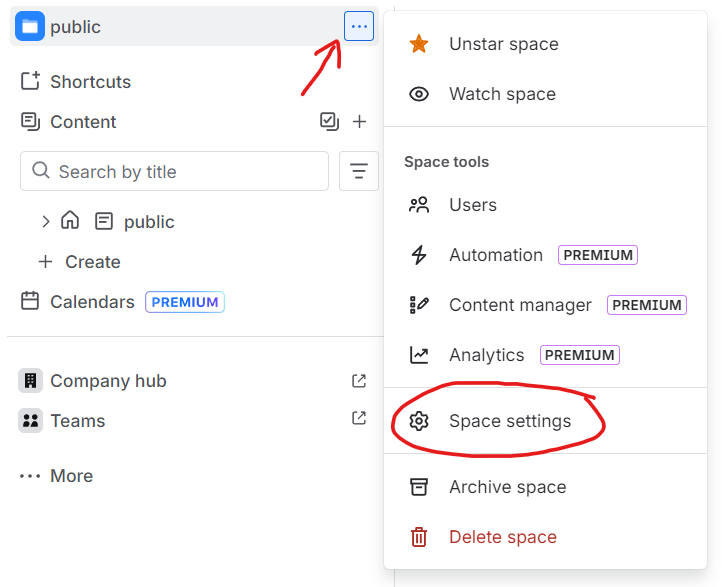
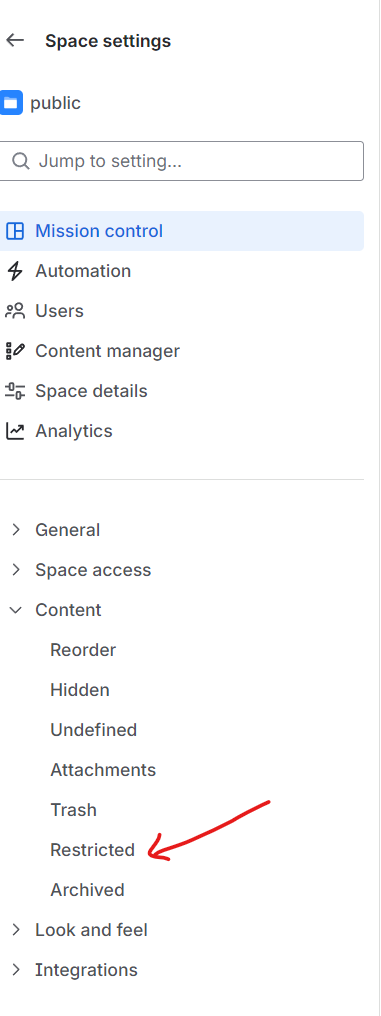

Restrictions are completely removed. There is no way to easily restore previous restrictions. Notify all affected parties and coordinate with your team if you decide to do this.
-
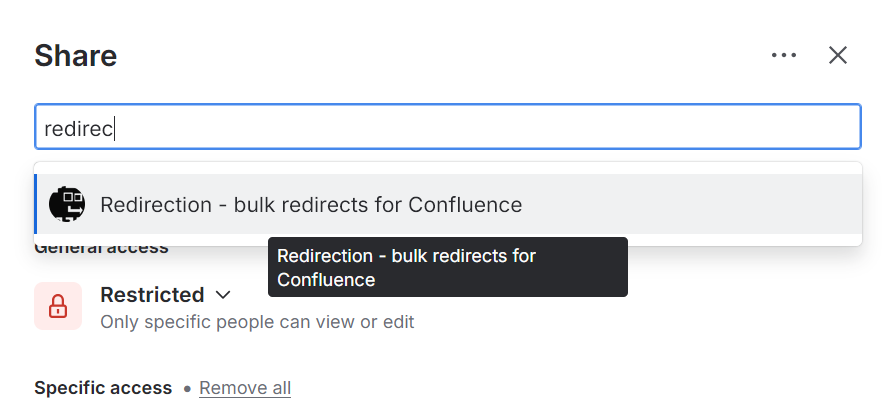
Tell page owners (or anyone with access who can modify permissions) to add the App user as an editor:
While Confluence premium users can use the “Admin Key” feature to temporarily grant access to restricted pages, this will not work for Redirection. Restricted pages will not show up in the app despite having an active key.