

Use specially formatted JSON files to
-
export existing redirects
-
import new redirects
Use cases
-
if you have a lot of redirects manual configuration is time consuming
-
creating backups
How to format a JSON file for importing
You must use this specific format for both exporting and importing redirects.
This is a JSON Schema file. JSON Schema is a declarative language for annotating and validating JSON documents' structure, constraints, and data types.
There are a variety of tools to help you create and validate JSON files matching a schema. We recommend using them to ensure conformity prior to attempting imports.
Alternatively, various online services exist that allow you to directly paste schemas and JSON files to check for proper formatting.
If you would like imports to overwrite existing redirects, you must set allowOverwrites to true. Additionally, the import process will flag multiple redirect definitions for the same page since such a file would result in only the last definition being written and the rest are likely unintentional mistakes. Ensure that you only specify one redirect for a particular page.
How to import redirects as a JSON file
-
Open the bulk redirects area by going to Confluence administration → Apps → Redirection.
-
Go to the tab ‘Create redirects’ and select ‘Import redirects’.
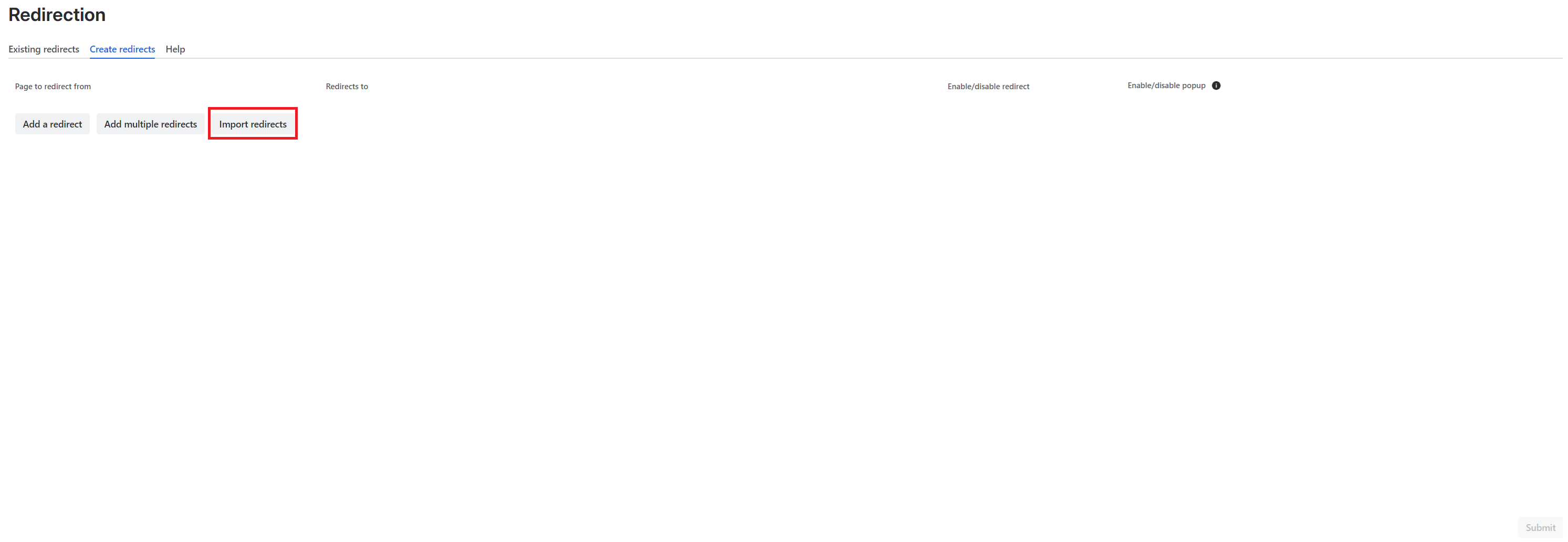
-
import a properly formatted import file (see above section)
-
you can use the relevant feature in the “Create redirects” tab to process it:
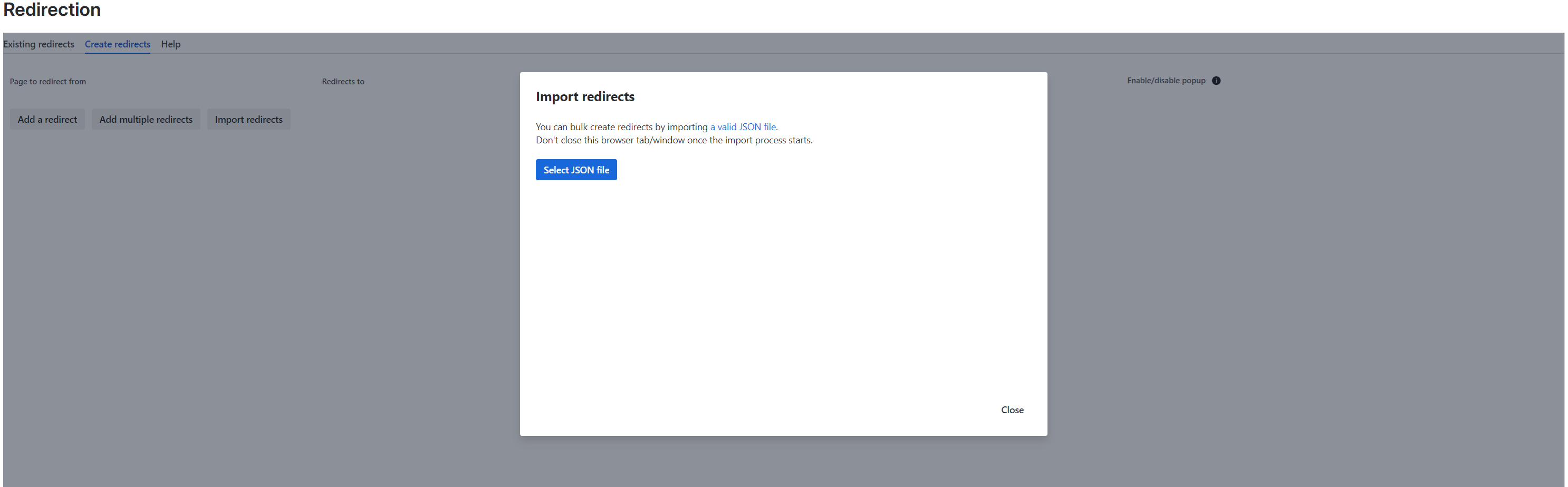
-
keep the browser tab/window open while it uploads. The close button is disabled until the process is finished.
If you get error message
If your JSON file contains errors they will be listed. Correct them and retry.
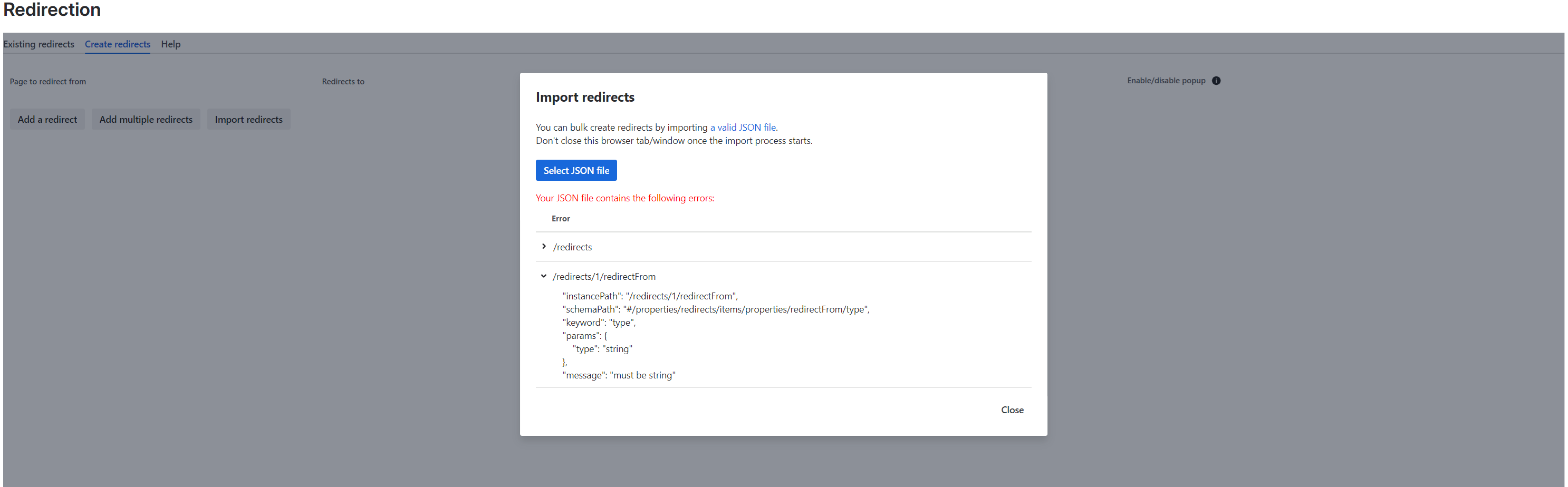
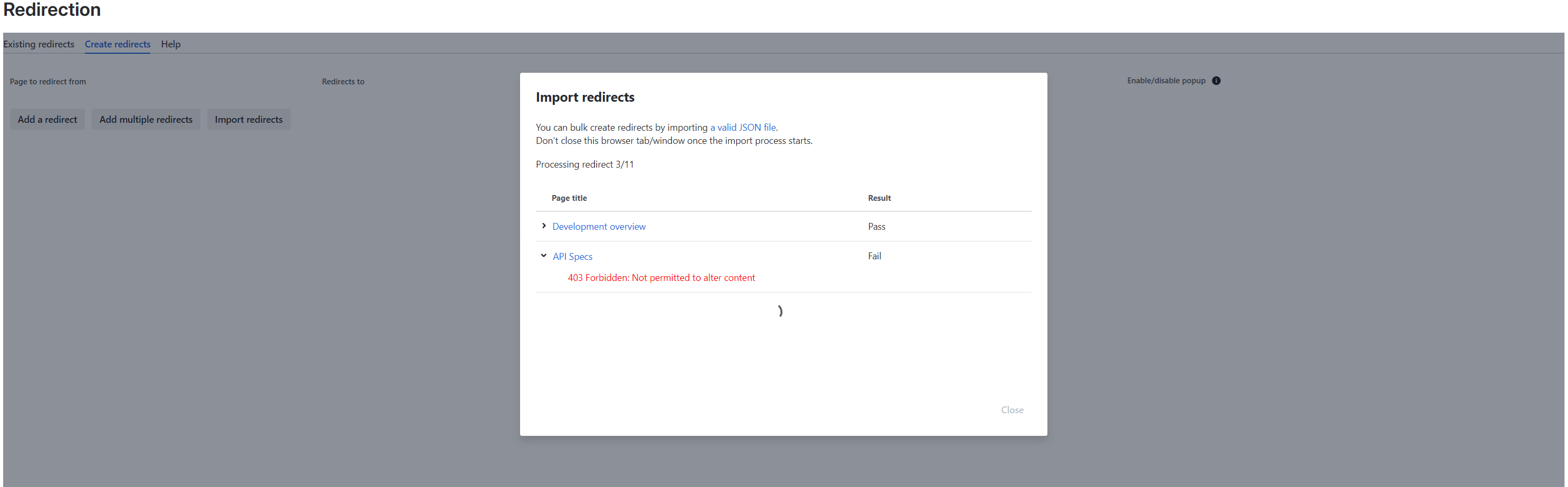
-
what happens if it works
How to export redirects as a JSON file
-
Open the bulk redirects area by going to Confluence administration → Apps → Redirection.
-
In the default tab ‘Existing redirects’ and select ‘Export redirects’.
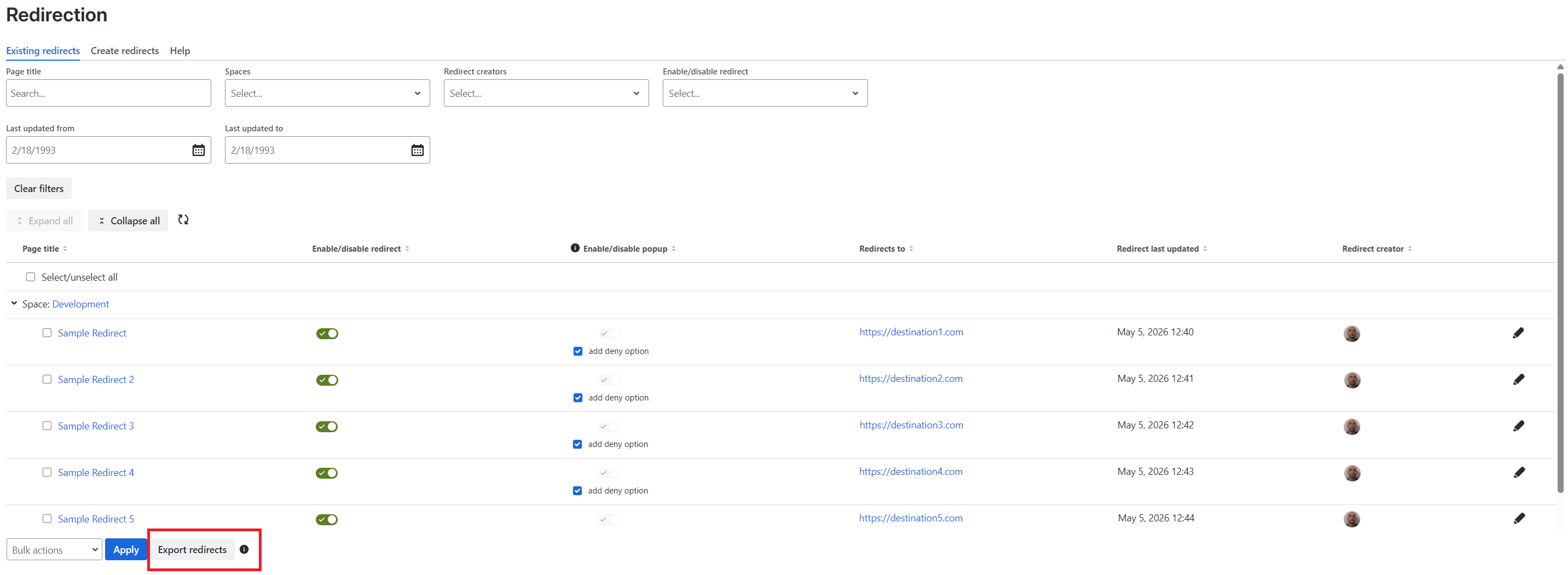
-
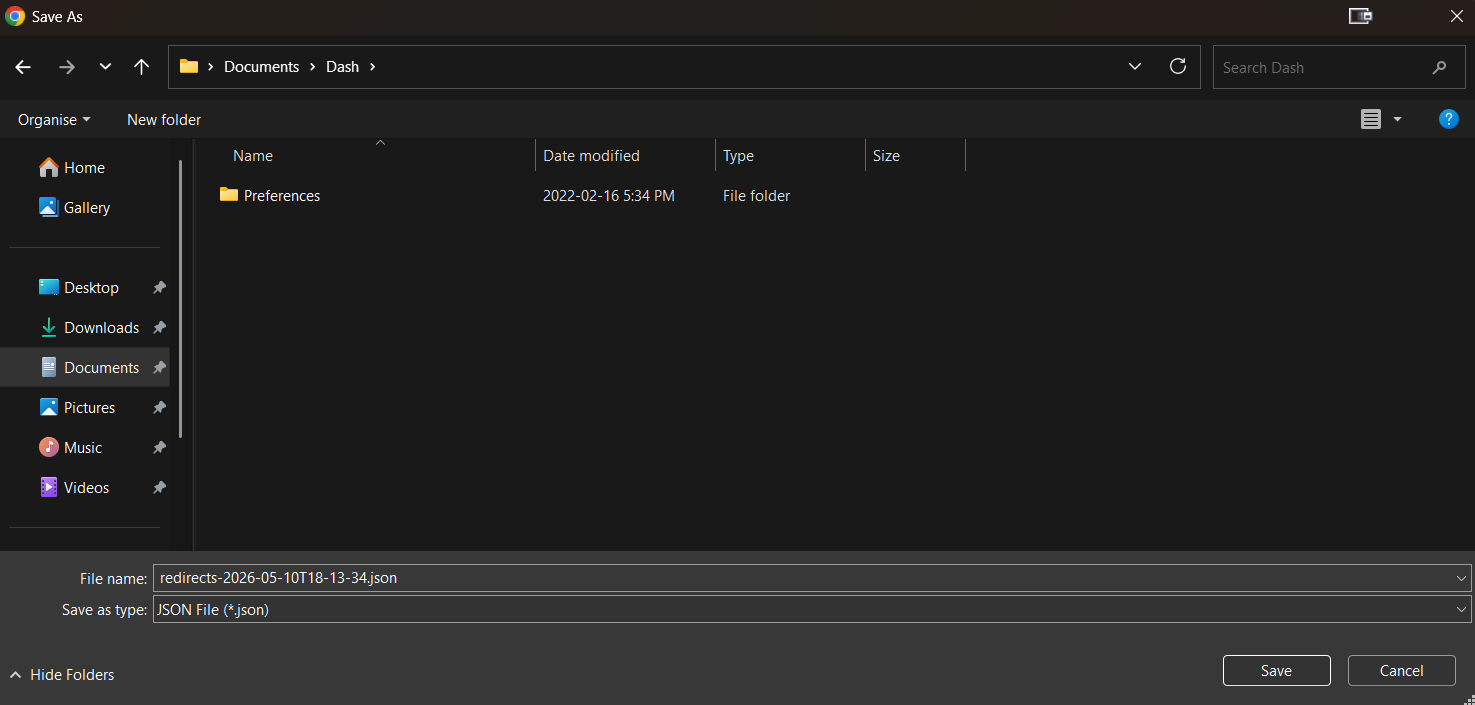
opens a standard download window
The one below is Windows. The default filename has a timestamped list of redirects.
-
one more step
Backups do not include redirects set on restricted pages (see technical notes).