

What you can do with Word Count
Highlight text in edit or published mode
-
word count
-
character count
-
characters excluding spaces
Detailed page statistics
-
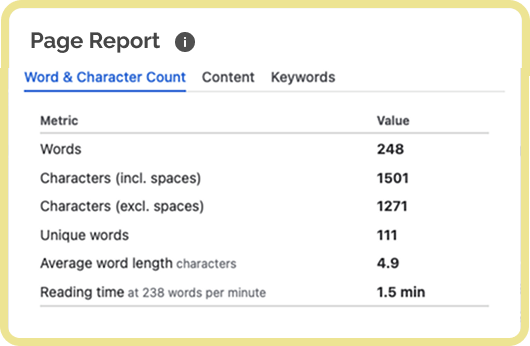
words, characters with and without spaces, unique words, average word length, reading time
-
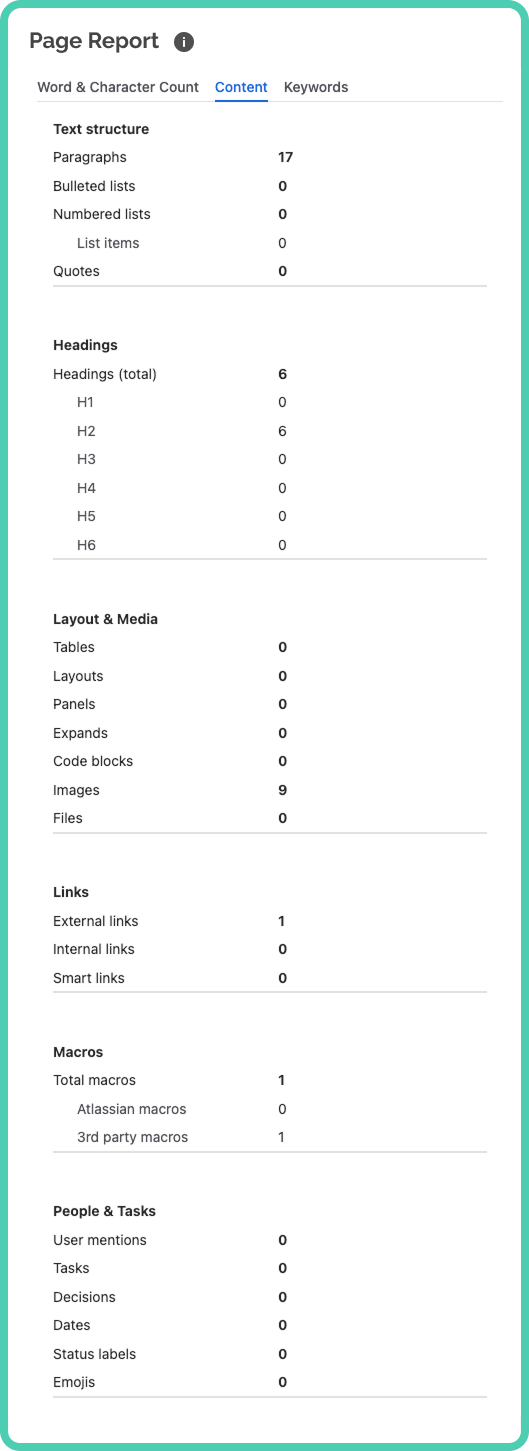
text structure, headings, layout, media, macros, people, tasks
-
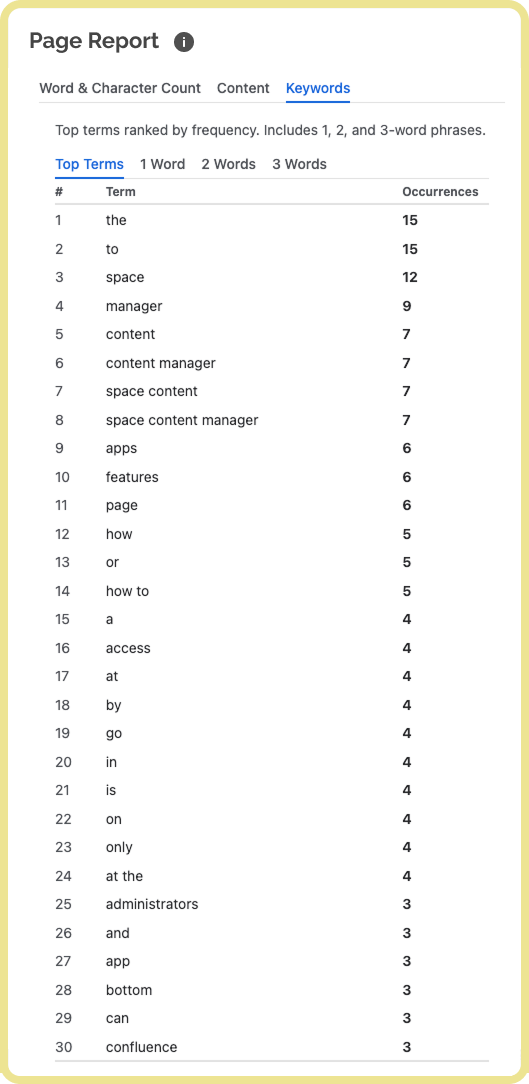
keywords: top, 1 word, 2 words, 3 words
Insert page macro
-
display page word and character count
How to count words and characters of selected text
Highlight text on a Confluence page
In either edit to published mode, select the text that you want to get a word and character count for.
-
supports Pages and Live Docs
-
supports all languages (Unicode)
-
does not support Whiteboards, Databases, Smart Link or Slides
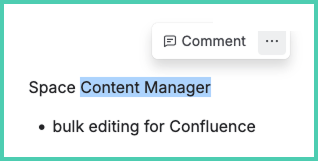
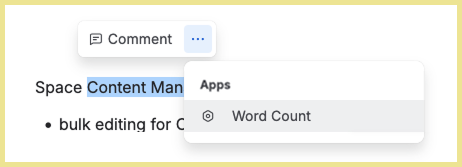
Choose app Word Count
A menu appears after you highlight text. Click … then Word Count.
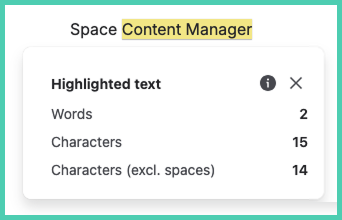
See results
The results give you the number of words, characters and characters excluding spaces.
How to see counts and statistics across the page
Page report
Use case: optimizing content for SEO and LLMs.
How to access
-
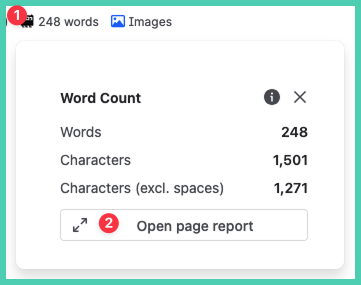
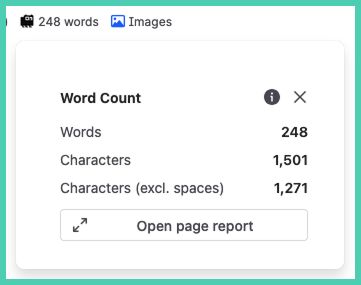
click on the byline where word count is displayed below the title of the page
→ ‘Open page report’
-
open from More Actions
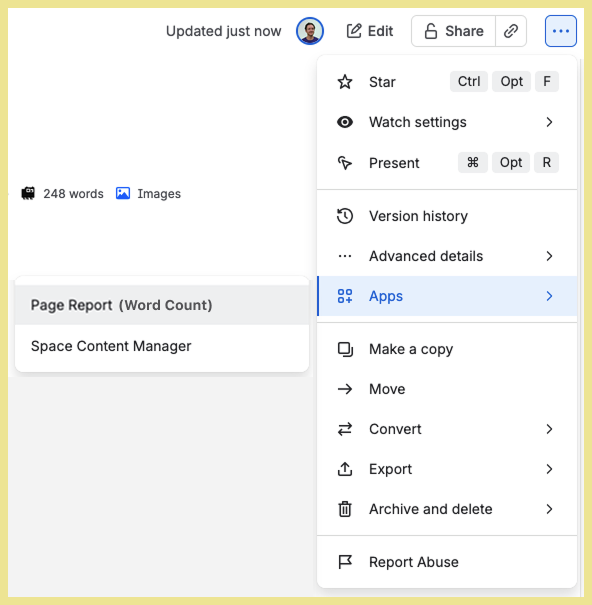
What it shows
Word and character count: words, characters with and without spaces, unique words, average word length, reading time.
Content: text structure, headings, layout, media, macros, people, tasks.
Keywords: top, 1 word, 2 words, 3 words
Byline menu
The byline in the menu shows total words on a page.
When hover over you also see character count.
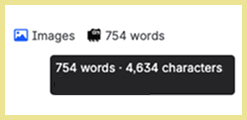
When you click on the byline you also get characters excluding spaces.
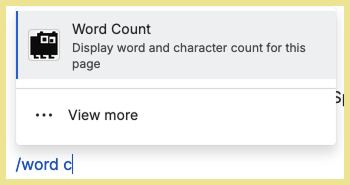
Macro to display page word and character count
Search for the macro called ‘Word Count’.
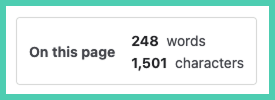
The resulting macro looks like this.
Text on third party macros is not included in the word and character count. This is a Confluence limitation. Learn more.
Last updated: October 31, 2026