
What you can do with Label Manager
All users can
-
add labels or delete labels from multiple pages at once
Space administrators can also
-
merge, rename or completely remove labels from a space
How to open Label Manager
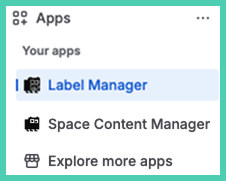
Apps --> Label Manager
To edit labels across multiple spaces.
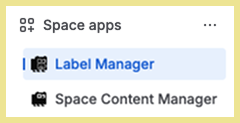
Space apps --> Label Manager
Must be on a page. Scroll down.
Note: when using the app under Space apps it only edits labels on the space you are in.
Add labels
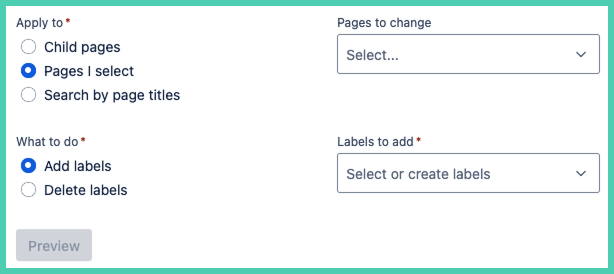
Select pages to apply the labels to. There are three options.
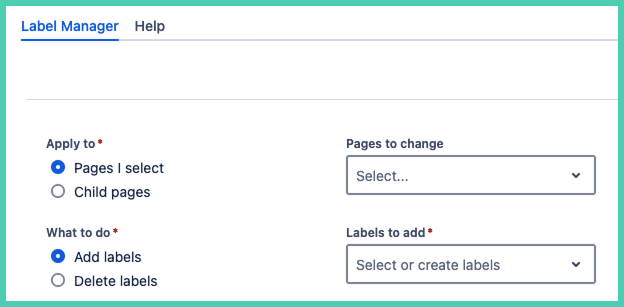
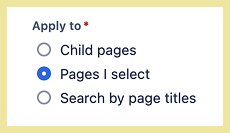
Pages I select
This allows you to select individual pages:
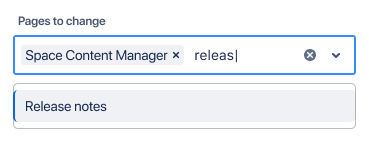
Choose one or multiple pages by searching by page title:
Child pages
Choose one or more parent pages to make changes to all the related child pages:
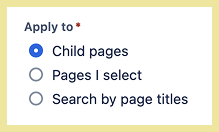
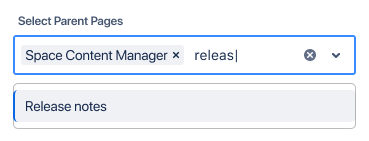
Only parent pages with children show up as page select options.
Search by page titles

Search for a text string in all page titles to apply the labels change to all pages with a search pattern in the title.
Add labels
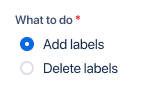
It is the default.
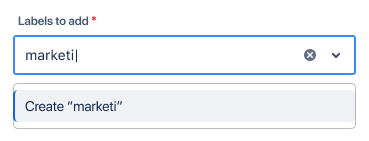
Search to find an existing label, when it shows as a suggested option select it. The image above is to create a new label, type in what you want to call it and select it or click enter (PC)/return (Mac).
Note: a new label is not created until it has been added to at least one page in the space.
Preview and save

Click preview.
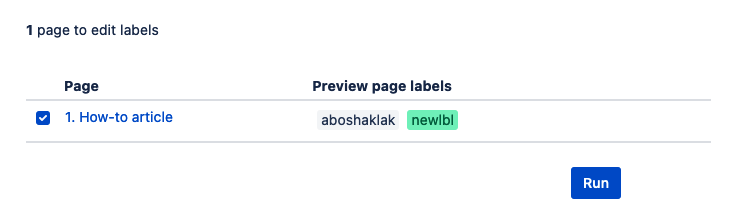
This is an example of a preview result.

When you are happy with the preview click Run.

A confirmation of the results is the final screen.
See what label colors mean in technical notes.
Delete labels
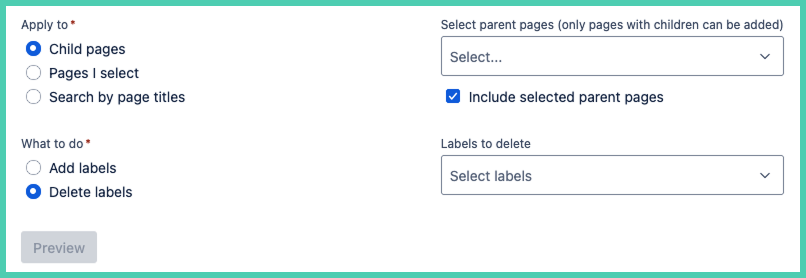
Select pages to apply the labels to. There are three options (see above).
Delete labels
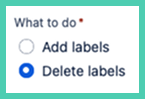
Choose Delete labels.
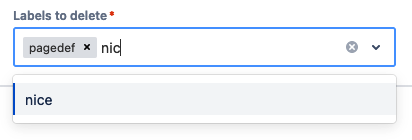
Select a label from the drop-down or start typing in the name of the label, select it or click enter (PC)/return (Mac).
You have the option to delete multiple labels as the same time.
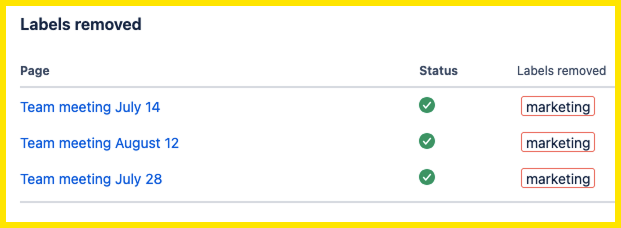
After selecting preview you get an overview of proposed changes.
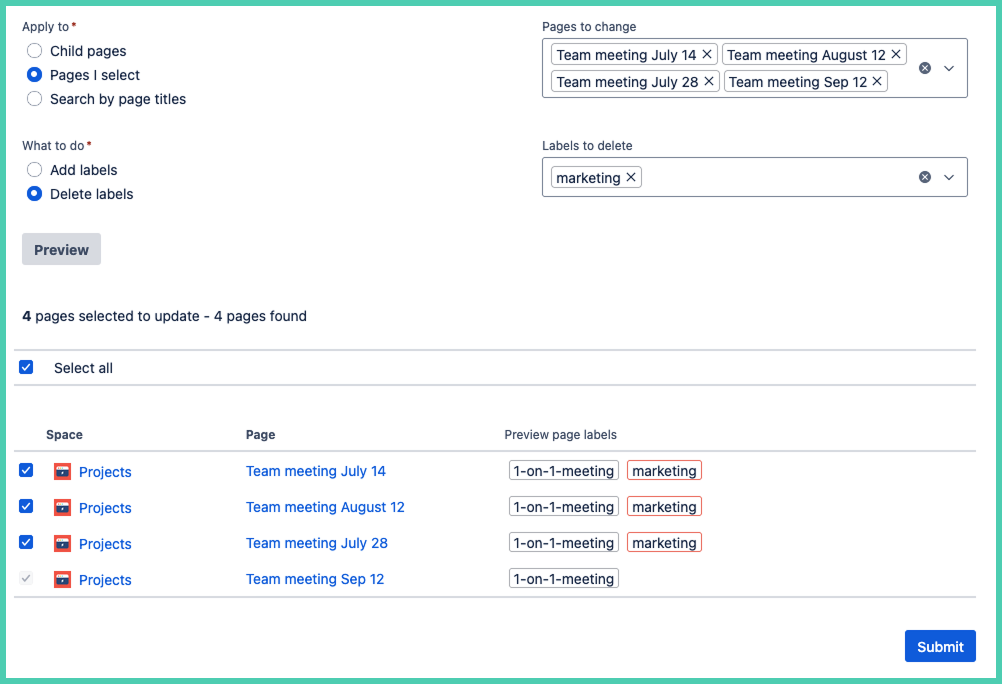
The labels being removed have a red border. Deselect the pages you do not want to change. When a page does not have the label you want to delete the select option is not available.
Merge and rename labels (space admins only)
Only space administrators see the button More actions.
Access to admin features
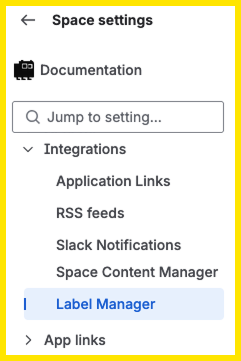
Space administrators can also merge or rename labels.
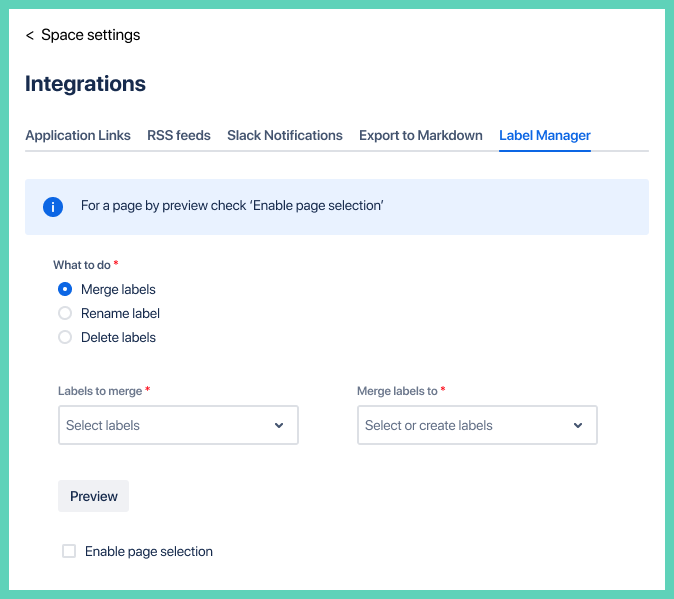
How to merge labels
Merge is the default choose. You must select at least two ‘Labels to merge’. Then select one ‘Merge label to’:
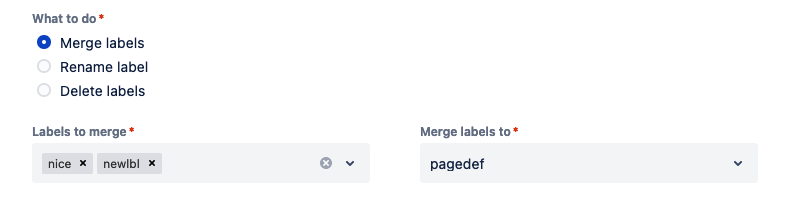
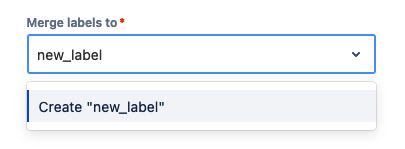
To create a new label to ‘Rename labels to’ type in the name of the new label, then click enter/return:
How to rename a label
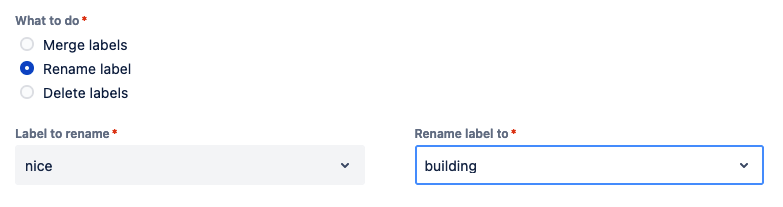
Choose the second option ‘Rename label’. Then choose a ‘Label to rename’ from the drop-down. To rename to an existing label select a label in the drop-down under ‘Rename label to’:
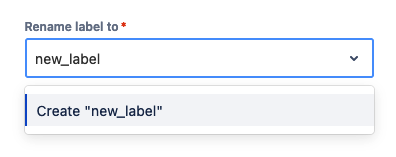
To create a new label to ‘Rename labels to’ type in the name of the new label, then click enter/return:
How to delete labels
Choose the third option ‘Delete label’:
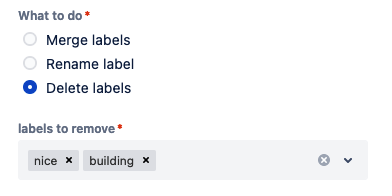
You can choose one label or multiple labels to delete at once.
Preview and finalize
Click preview:

The overview pages tells you how many pages will be impacted by the change:
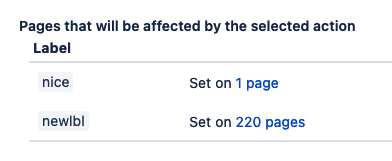
To exclude pages, check ‘Enable page selection’ below the preview button. It opens a more detailed preview.

Unselect pages
You have the option to unselect pages from being changed:
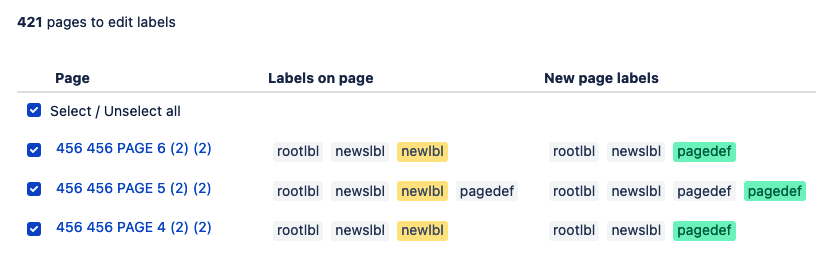
See what label colors mean in technical notes.
Run
Click ‘Run’ when ready to make the change:
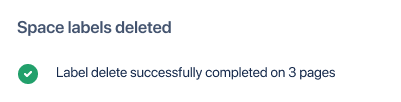
A confirmation of the results follows: