

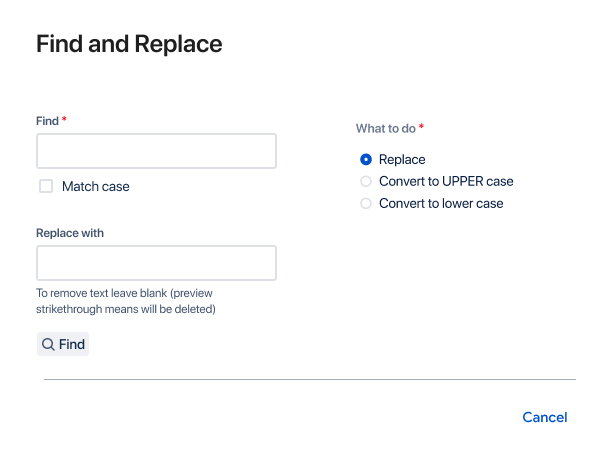
Open the app
On any page go to More actions → Find and Replace
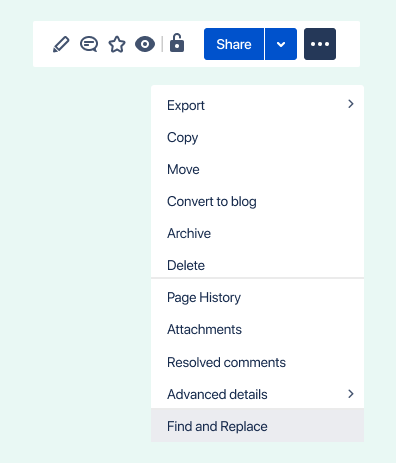
Find
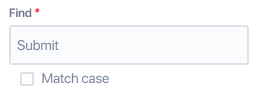
Use as many terms as you wish.
Supports:
-
most special characters like &, %, $, #
-
languages not using the Latin alphabet
-
Japanese, Chinese, Arabic, Greek, Hindi and more
-
Tip: use match case if possible to restrict the results.
Replace
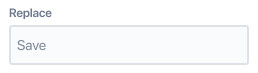
Replace text is case sensitive.
Delete
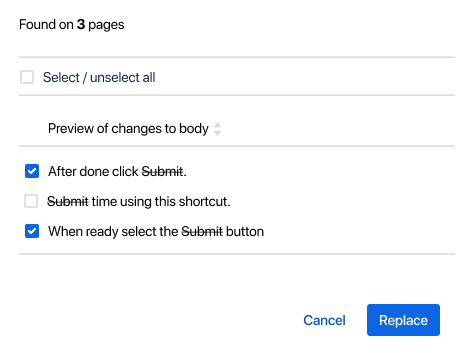
To delete terms, enter them in the Find field. Then leave the Replace field blank. Terms to be deleted displays in the preview with a strikethrough.
Replace or change case
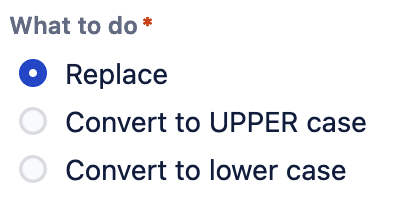
Most of the time the default Replace is desired. But there are also options to convert to upper case or lower case.
Preview
Click the Find button to preview the changes.

The Find button will change to a spinning icon as the app searches the pages. If your space has a large number of pages please be patient.
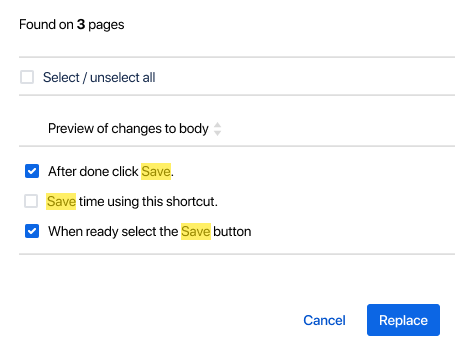
The proposed change is highlighted in yellow. Deselect pages you do not want to change.
If the Replace field is left blank the terms are deleted. They are displayed with a strikethrough.
Confirm
When happy with the preview click Replace.


Click on the blue hyperlinked text to reload the page or click reload in your browser.